
If you’re looking to learn how to print order receipts or tickets using Orderable, this guide will walk you through the steps.
With Orderable, you can send order receipts, driver tickets, kitchen tickets, and more directly to your local printer (physically or wirelessly connected). If you’re looking for instructions on how to create or customize your receipt layouts/contents, see our How to Create and Edit Ticket/Receipt Layouts guide.
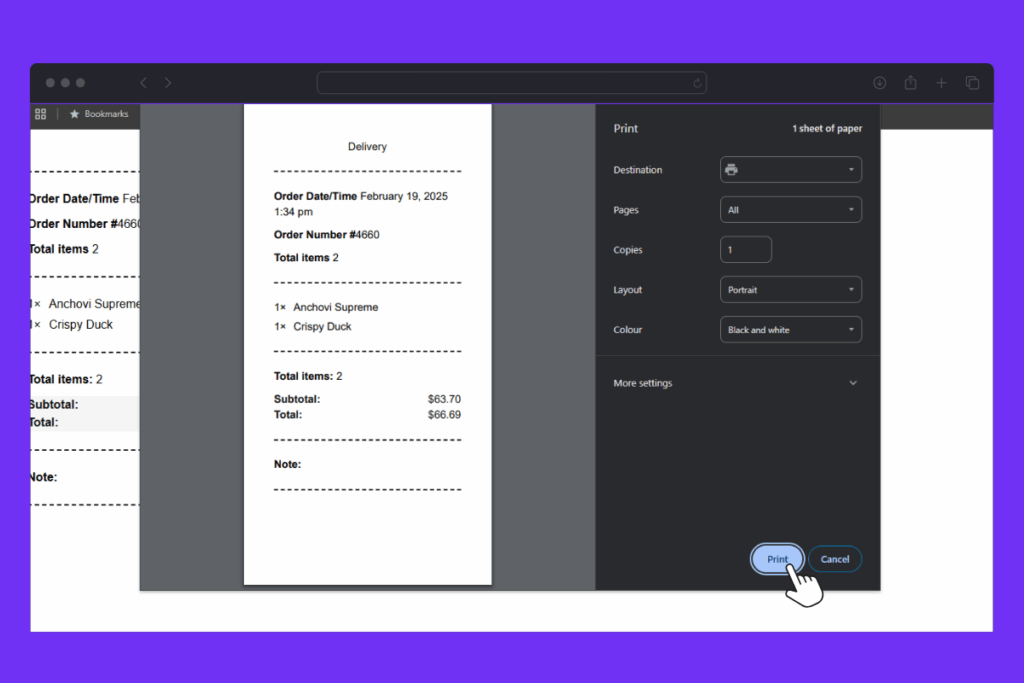
Note: This doesn’t include remote printing. You will need to have your printer in the same physical location as your device using Orderable.
There are a couple of different ways you can print order receipts using Orderable. One is by setting a default receipt layout that you can use to save time on the Live Order View or Orders screen in WooCommerce. The second is printing any one of your receipt layouts when editing an order. We’ll walk you through each.
How to quick print receipts/tickets
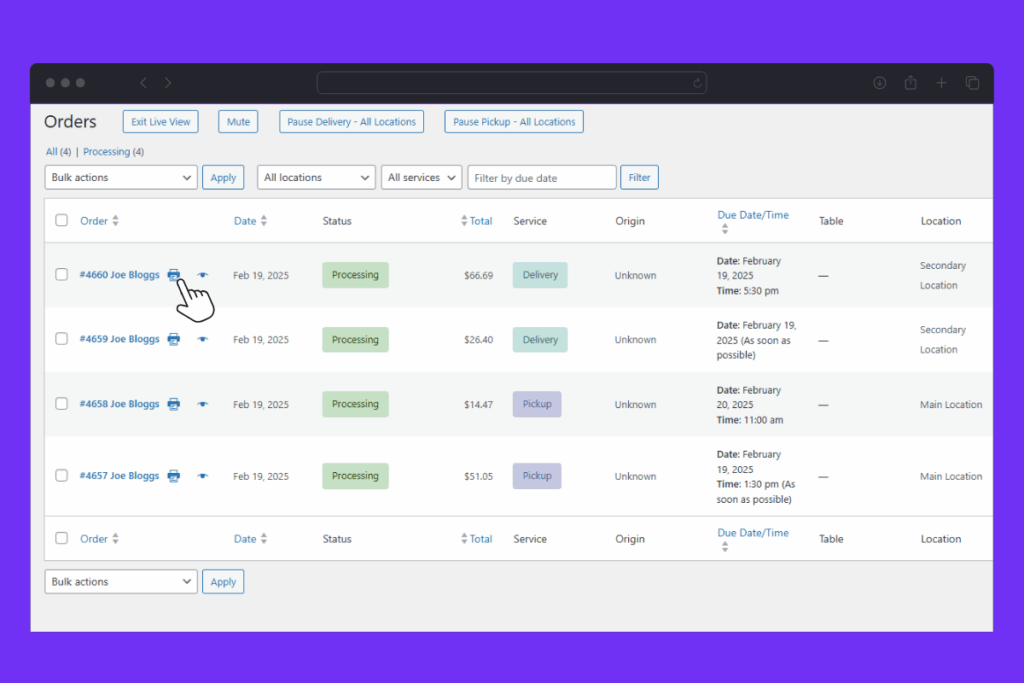
Quick printing happens when you set a default receipt layout from Orderable’s settings. Once set, you can click the print icon on the Live Order View or Orders screen in WooCommerce.
To set this up, take the following steps:
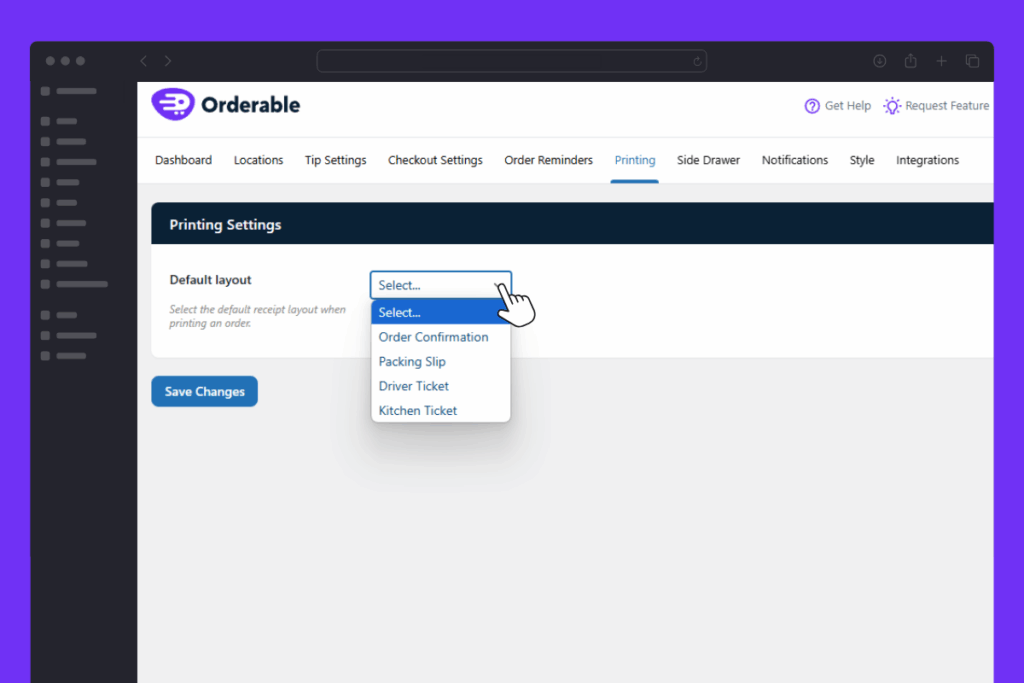
- From your WordPress dashboard, go to Orderable > Settings and click the Printing link/tab at the top of the page.
- Here you’ll see a setting which allows you to pick your default receipt layout. Select this using the dropdown and click the blue Save Changes button.
- Now when you view the Live Order View or Orders screen, you’ll see a print icon. When clicked, this will pull up your default layout, ready to be sent to your local printer.
How to select different receipt/ticket layouts
If you’re looking to print a layout that’s not your default one, you can do this when clicking on an order.
To do this, take the following steps:
- From your WordPress dashboard, go to either Orderable > Live Order View, or WooCommerce > Orders. Click on the order you want to print receipts for.
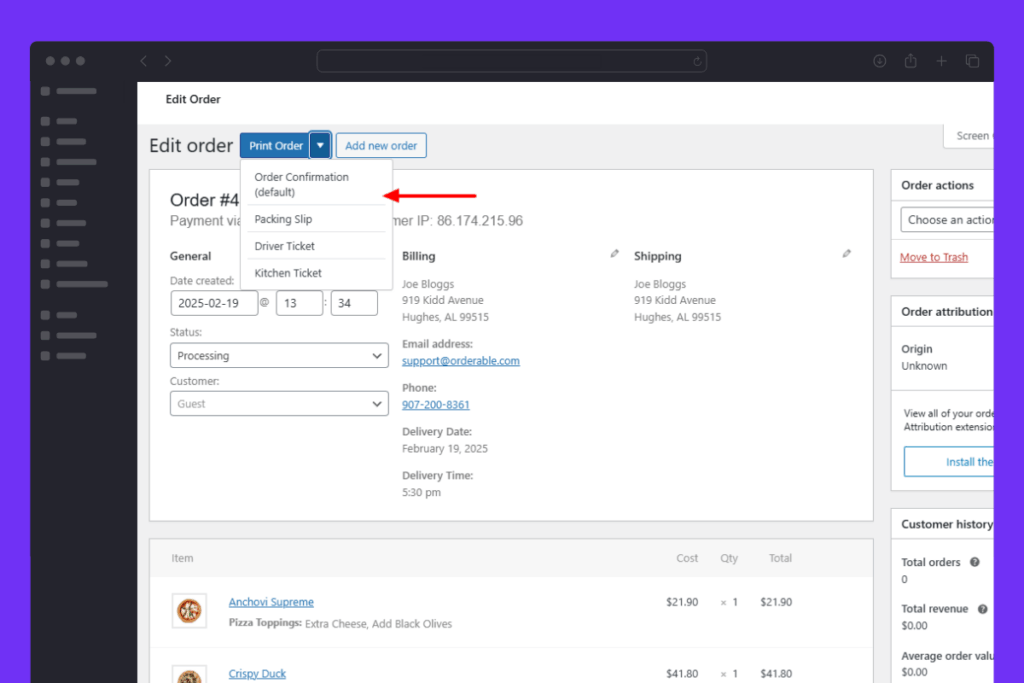
- At the top of the Edit order screen, you’ll see a button called Print Order with a down arrow next to it. Clicking Print Order will pull up your default layout for printing. Clicking the down arrow will allow you to select any of your other layouts.


Get Your Restaurant Online With Orderable
The WooCommerce plugin designed to help restaurants take orders online – with no added fees!
View Pricing