


If you’re looking to prevent customers from placing orders with you while you’re closed, you can do so with the steps in this guide.
Step 1: Set your open hours
Within Orderable, you can set the open hours for your business locations (multiple locations are an Orderable Pro feature).
To do this, take the following steps:
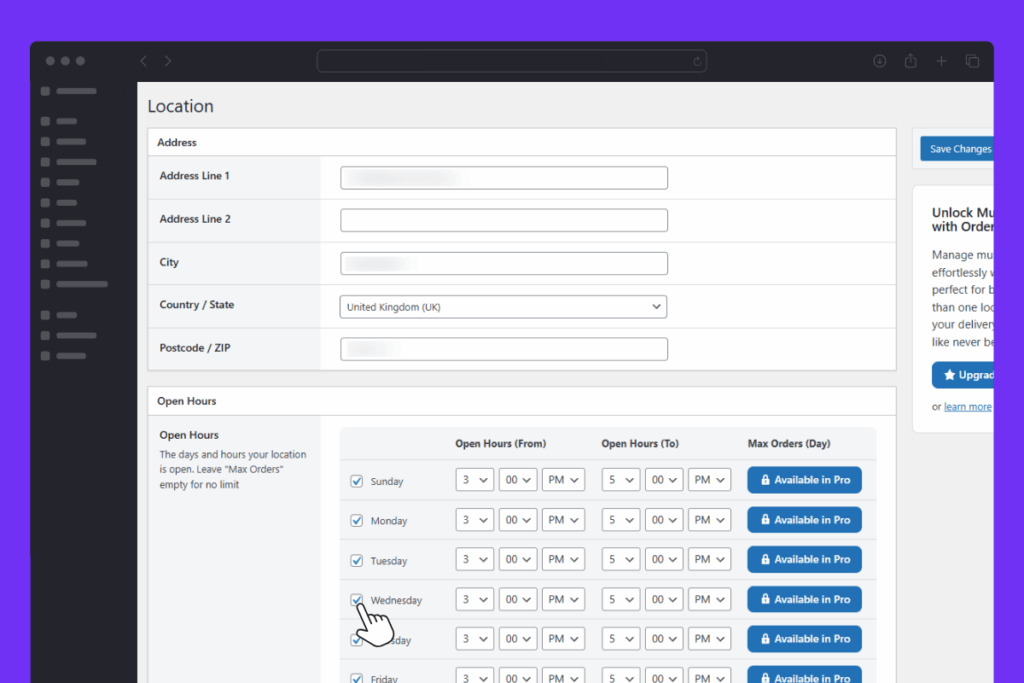
- From your WordPress dashboard, go to Orderable > Location (or Locations if you’re using Orderable Pro).
- Scroll down to the Open Hours section of the page and both tick the checkbox next to each day you’re open and set your from and to hours.
Step 2: Turn on the restrict open hours setting
Once you’re happy with your open hours, you can restrict orders to only be placed during these hours.
To do this, take the following steps:
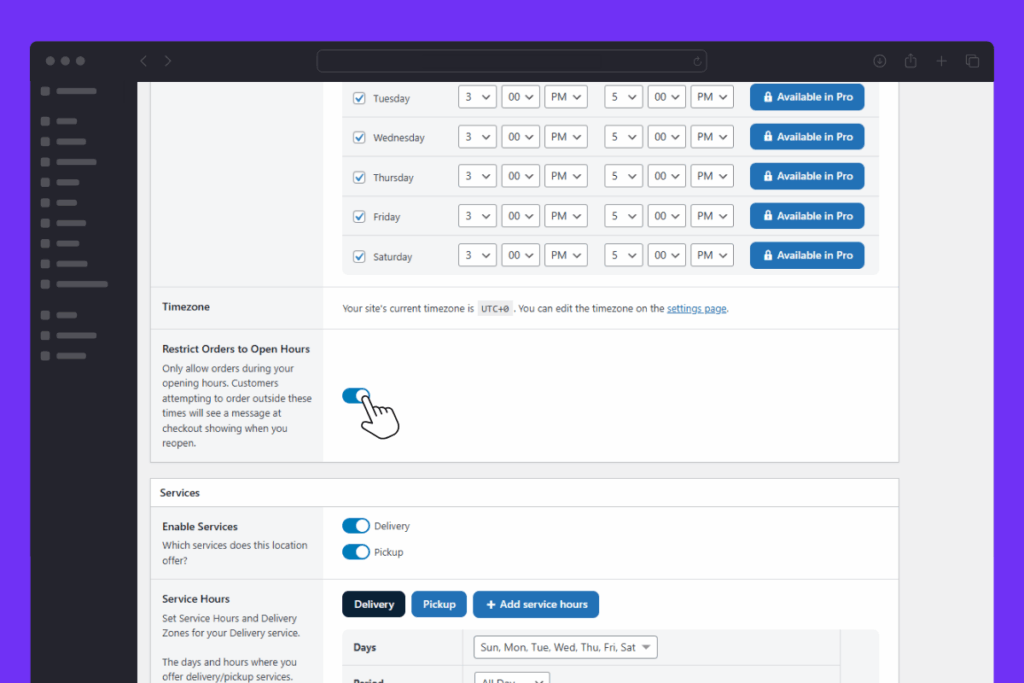
- On the same page you were just on (Orderable > Location), scroll to the bottom of the Open Hours section.
- Here you’ll find a setting that says Restrict Orders to Open Hours. Click the toggle button to turn this on.
- Now scroll back to the top of the page and click the blue Save Changes button.
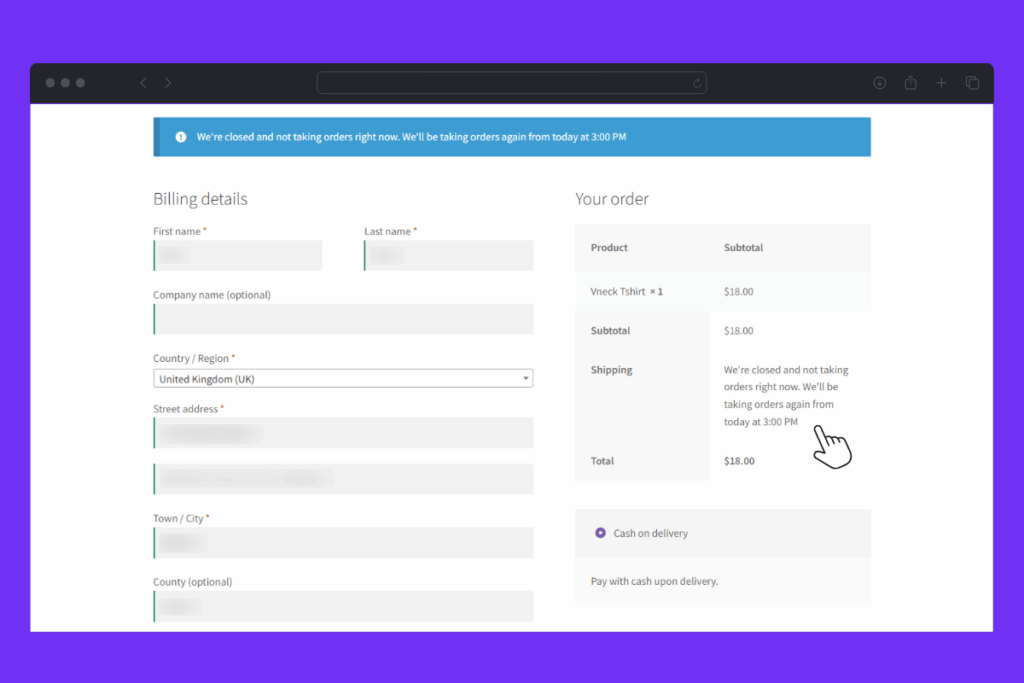
With this setting turned on, customers won’t be able to place orders when you’re closed, and they’ll see a message at the checkout that tells them when you’ll reopen.
Note: Orders will not be accepted in the final minute of the window, so if you close at 5 pm, last orders will be accepted at 4:59 pm.


Get Your Restaurant Online With Orderable
The WooCommerce plugin designed to help restaurants take orders online – with no added fees!
View Pricing