
Restaurant Curbside Pickup 101: A Guide for Restaurant Owners

Restaurant Curbside Pickup 101: A Guide for Restaurant Owners


Gina Lucia

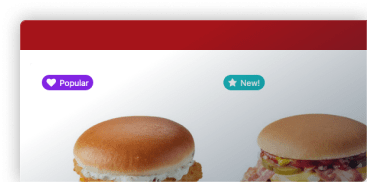
Restaurant curbside pickup has become an increasingly popular option for diners who want to enjoy their favorite meals from their homes or cars.
But if you’re a restaurant or food business:
- Will offering a curbside pickup option benefit you as a business?
- And if so, how do you add it to your business, should you want to?
Well, in this guide, we’ll answer both of those questions and provide a foolproof way you can add curbside pickup to your restaurant in no time at all.
But first, let’s address the basics by explaining what curbside pickup is.
Get Your Restaurant Business Online With Orderable
Orderable is a user-friendly WordPress plugin that adds online ordering to your restaurant website.
Add your dishes, create your online ordering menu, customize your delivery schedule, and manage orders with ease.


What is restaurant curbside pickup?
Restaurant curbside pickup lets customers order online or by phone, then collect their food outside the restaurant without entering. Staff bring the order directly to the customer’s car or a designated pickup area.
In its basic form, customers will pick up their order by the side of a road or pavement. But since ‘curbside pickup’ is a widely used term, sometimes this can be another way of saying drive-thru, carryout, curbside takeout, or off-premises pickup.
With the rise of online ordering, curbside pickup has become an increasingly popular option. Especially for diners who want to enjoy their favorite meals from their favorite restaurant but in the comfort of their own home.
How does curbside pickup work at restaurants?
Customers place an order, receive pickup instructions, and collect their food without stepping inside. Your team prepares the meal and brings it straight to their car or a waiting area.
| Step | Customer action | Restaurant action |
|---|---|---|
| 1 | Place order online or by phone | Receive order via POS or website |
| 2 | Receive pickup instructions | Send confirmation and pickup details |
| 3 | Arrive at pickup spot | Complete the transaction and thank the customer |
| 4 | Collect order | Prepare food and bring it to the customer |
To use curbside pickup, customers typically place their orders through the restaurant’s website or by calling directly. They’ll then get their pickup instructions either when they place their order at the checkout or when the restaurant contacts them (sometimes via a confirmation email) to confirm.
After placing the order, the customer drives or walks to the restaurant and waits for it at the pickup spot.
The restaurant staff will then bring the order to the customer’s car, and the customer can drive or walk away with their food.
What types of restaurants offer curbside pickup?
From fast-food chains to fine dining spots, almost any restaurant can offer curbside pickup. It’s a flexible service that works for casual, upscale, and specialty dining alike.
Curbside pickup isn’t limited to one type of restaurant. It’s used by everyone from global chains to local diners. Fast-food brands like McDonald’s, Burger King, and Chick-fil-A have long offered drive-thru services, which are essentially a form of curbside pickup.
On the other end of the spectrum, fine dining restaurants such as The Capital Grille and Ruth’s Chris Steak House have introduced curbside pickup to give guests a high-quality dining experience at home.
Independent cafés, farm-to-table bistros, and family-owned pizzerias also use curbside pickup to serve loyal locals without adding the costs of delivery. This variety shows just how flexible and adaptable curbside pickup can be for different business models.
What are the benefits of curbside pickup for restaurants?
Curbside pickup adds a sales channel without the cost and logistics of delivery. It can increase revenue, improve convenience for customers, and help you serve more people in less time.
Restaurant curbside pickup is a convenient option for diners who want to enjoy their favorite meals without indoor dining.
By offering this service, restaurants can expand their customer base and increase revenue while providing added convenience for customers.
| Benefit | Why it matters | Who it helps most |
|---|---|---|
| Serve more customers without delivery costs | Expands reach without hiring drivers or paying commissions | Small restaurants without delivery staff |
| Increase revenue | Adds a new sales channel for takeout customers | All restaurant types |
| Improve customer experience | Offers convenience and shorter wait times | Busy families, professionals |
| Adapt to customer preferences | Meets growing demand for contactless options | Health-conscious and safety-focused diners |
Serve additional customers without the delivery management and costs
As a restaurant, you may not have the time or resources to offer delivery services to your customers. But serving more customers is something you want to do.
If this is the case, offering curbside pickup is a great in-between option that allows you to reach more customers without the additional overhead cost of delivery.
Increased revenue
Curbside pickup provides an additional sales channel for restaurants. With curbside pickup, restaurants can offer their menu to a wider range of customers, including those who may not be able to dine in or prefer the convenience of takeaway.
Enhanced customer experience
One of the biggest advantages of restaurant curbside pickup is the convenience it offers to customers.
Diners can easily order and pay for their food from the comfort of their homes or while on the go, without worrying about finding parking or waiting in long lines inside the restaurant.
This makes curbside pickup a popular option for busy families, professionals, and anyone who wants to avoid the hassle of dining in or waiting for their food inside the restaurant.
How can I add curbside pickup to my restaurant website?
The easiest way to offer curbside pickup is by adding an online ordering system to your website. Customers can choose pickup during checkout, and you can set clear instructions and time slots.
Many restaurants have implemented online ordering systems through their websites to make curbside pickup even more convenient for customers.
Customers can browse the menu, select the items they want to order, and pay online, all from their homes. The restaurant then prepares the order and notifies the customer when it’s ready for pickup.
But while this sounds like a fantastic option to add to your restaurant website, how do you actually do it?
The best curbside pickup solution
If you want to add curbside pickup to your restaurant website, you’ll need the help of a few tools.
In this case:
- WordPress – which will allow you to create your restaurant website. If you already have this, you’re on track!
- Orderable – this WordPress plugin acts as your online ordering system. Allowing you to take orders online, set a schedule for curbside pickup, and create a curbside pickup menu for customers to order from.
With both of these tools, you’ll be able to secure your restaurant’s pickup orders, and the best part, unlike other 3rd-party delivery mobile apps (like DoorDash or Grubhub), there are no additional fees. The revenue you make from your curbside pickup orders is all yours.
So now we know the benefits of using Orderable and WordPress for restaurant curbside pickup, we’ll walk you through how to set it up.
Get Your Restaurant Business Online With Orderable
Orderable is a user-friendly WordPress plugin that adds online ordering to your restaurant website.
Add your dishes, create your online ordering menu, customize your delivery schedule, and manage orders with ease.
How do I set up curbside pickup with Orderable?
Orderable lets you create a pickup-ready online menu, set schedules, and manage orders, all inside WordPress. You keep full control and avoid paying third-party commission fees.
This powerful plugin has a range of features that make it easy for restaurant owners to set up and manage their online ordering system.
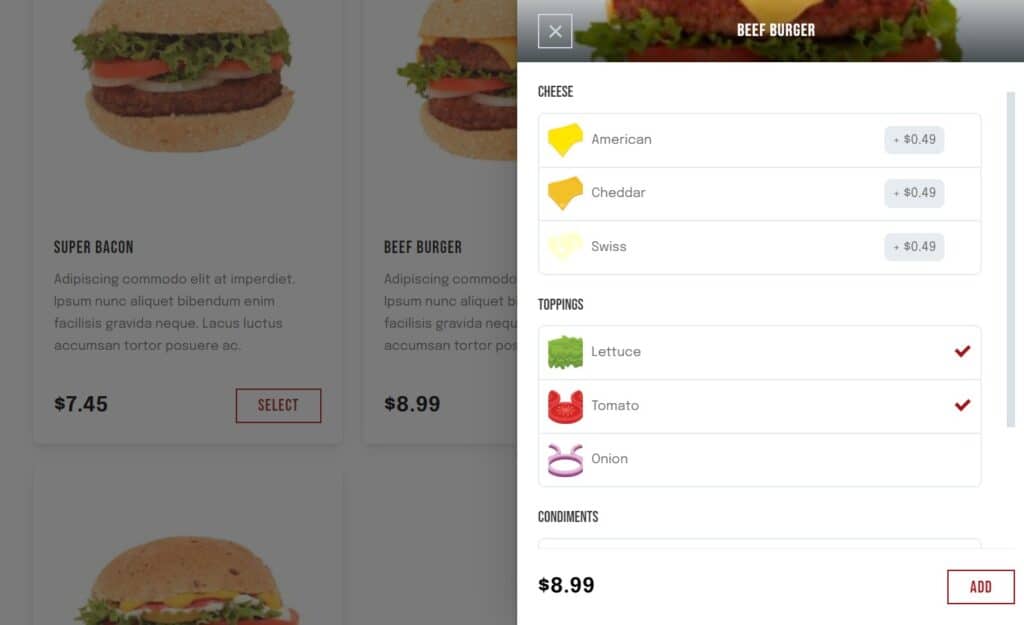
One of the key features of Orderable is its menu management system. This feature allows you to create and customize your menu items, prices, descriptions, and images. You can also set up options for each item, such as side dishes and toppings. This makes it easy for customers to select and order their favorite dishes online.
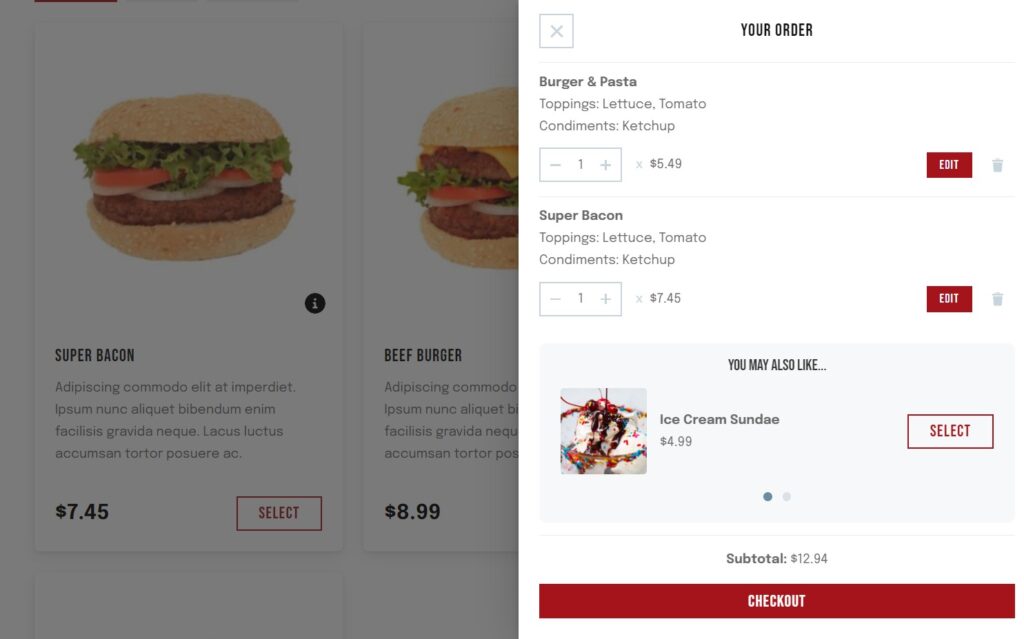
With Orderable, customers can place orders directly through your restaurant website. They can select their menu items, add special instructions, and securely complete their payment through the checkout.
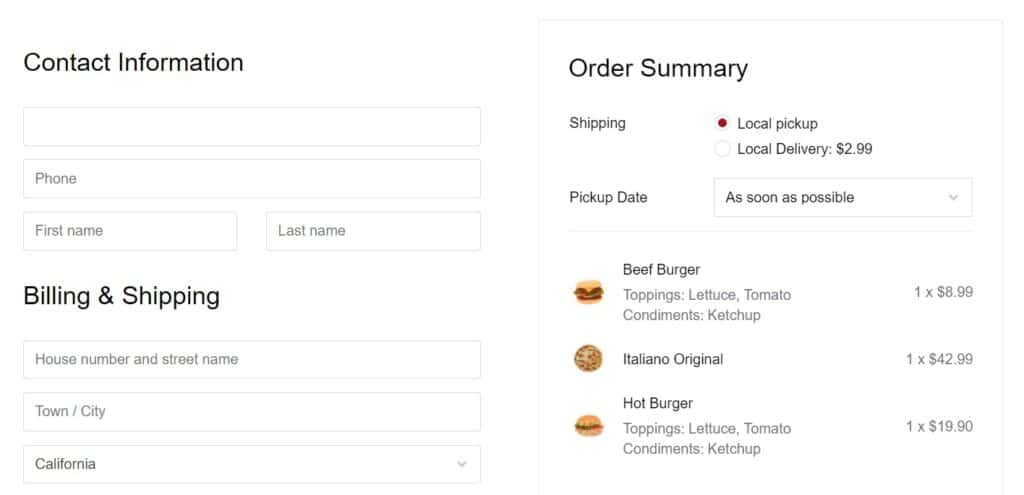
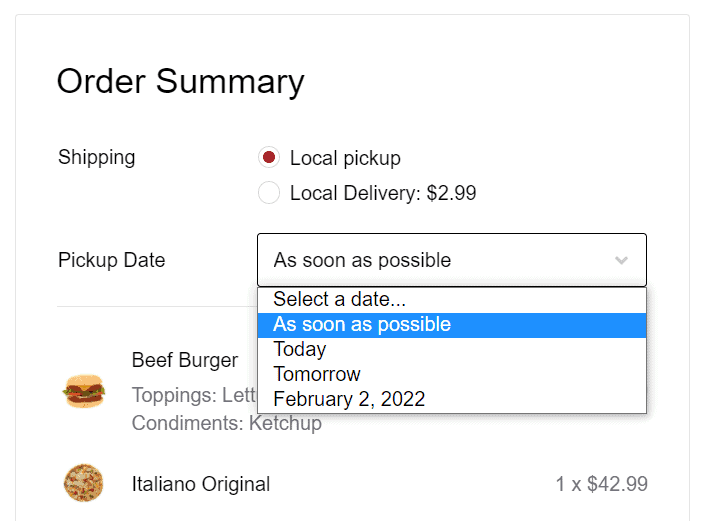
Orderable also offers a curbside/pickup schedule. With this, restaurant owners can set up specific pickup times for customers to collect their orders. This can help to reduce wait times and ensure that orders are prepared fresh and on time.
Get Your Restaurant Business Online With Orderable
Orderable is a user-friendly WordPress plugin that adds online ordering to your restaurant website.
Add your dishes, create your online ordering menu, customize your delivery schedule, and manage orders with ease.
So now we know some of what Orderable can do, let’s set it up on your WordPress website.
Step 1: Install and activate the WordPress plugin, Orderable
Summary: Add the free and Pro versions of Orderable to your WordPress site.
Purchase Orderable Pro from the Orderable website: Orderable.com. Then follow these steps to install it.
- Go to Plugins > Add New from your WordPress dashboard and click the Upload Plugin button.
- Select the .zip file of Orderable Free from your computer and click Install.
- Click Activate once the installation is complete.
- Repeat the above steps for Orderable Pro, and that’s it. You’ve installed Orderable Pro.
Step 2: Add your restaurant food/dishes
Summary: Create the products that will appear in your curbside pickup menu.
Now that we have Orderable installed, we’ll first need to create your curbside pickup menu that customers can order from.
To do this, we’ll first need to create the menu items or dishes:
- Go to Products > Add New from the WordPress dashboard.
- It’ll take you to a page where you can add all the essential information for your food items and dishes.
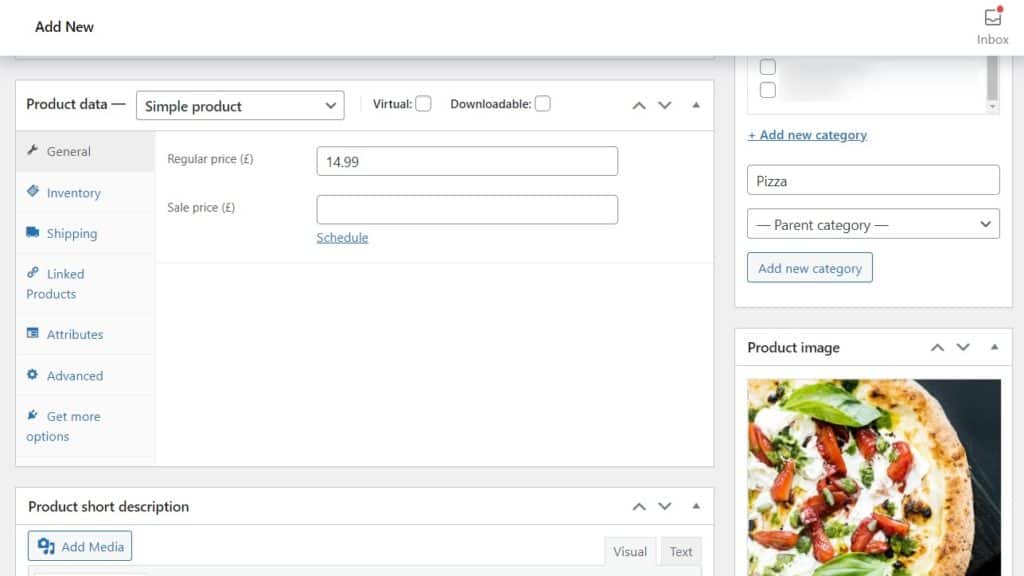
- Give it a title, description, and any other information you want to add to make it convincing to customers.
- To give it a price, scroll down to the Product Data section.
- To add a photograph of your dish, click Set Featured Image in the Product Image Section.
- Once you’re happy with your product, click Publish.
Repeat this step with all your restaurant dishes, and once done, we’ll move on to creating the menu customers will order from.
Step 3: Create your curbside pickup menu
Summary: Build a menu layout that’s easy for customers to browse and order from.
It’s time to create your menu. In Orderable, customers can order from a flexible online menu. In this menu, you can add everything from sides, customizable elements, dietary product labels, nutritional information, and more.
To set this up, take the following steps:
- Go to Orderable > Layout Builder from your WordPress dashboard and click the Add New button.
- Name this template layout and select which categories you want to include.
- You’ll see a preview of what it looks like at the bottom of the page.
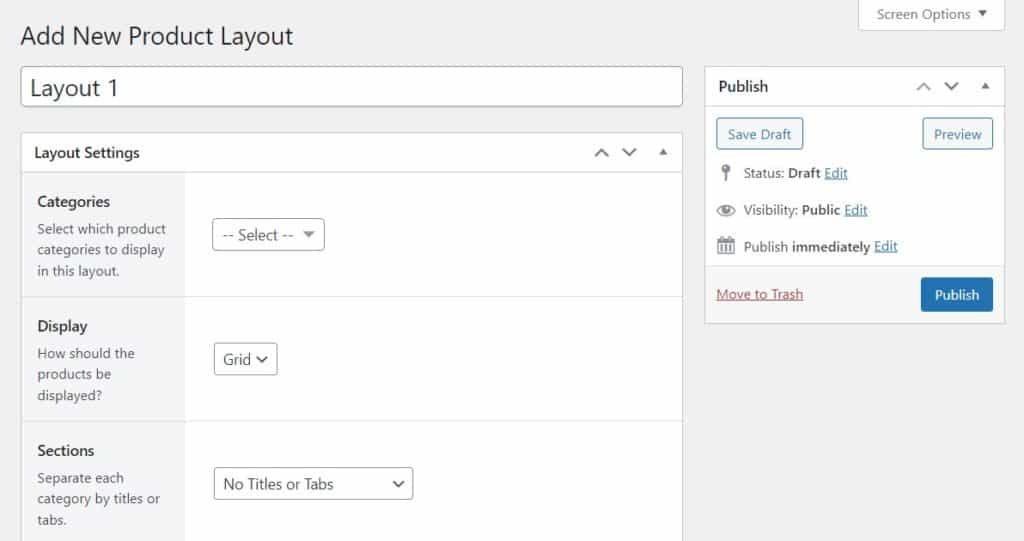
- Once you’ve taken the above steps, select how you want your layout displayed. The layout options with Orderable include either a Grid or a List.
- If you’ve already created your food items, you can determine what these look like by changing the menu Sections dropdown.
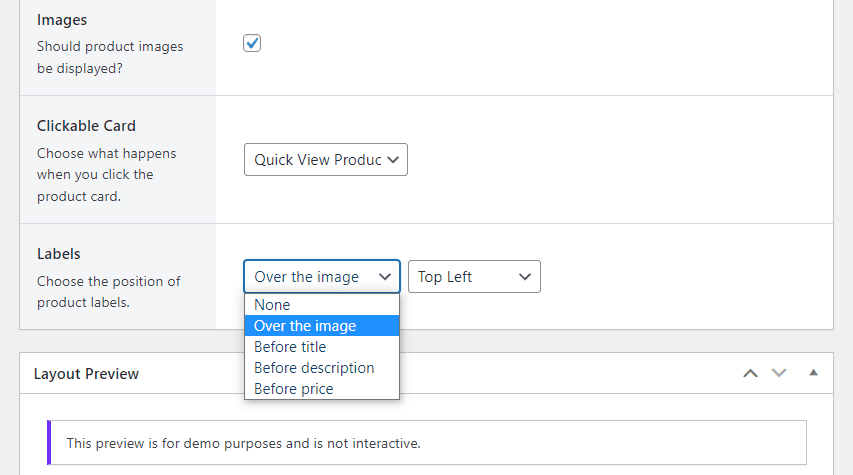
- You can select the clickable area for the images and the full menu item. Or you can make just the button clickable.
- Once you’re done with the above steps, click Publish.
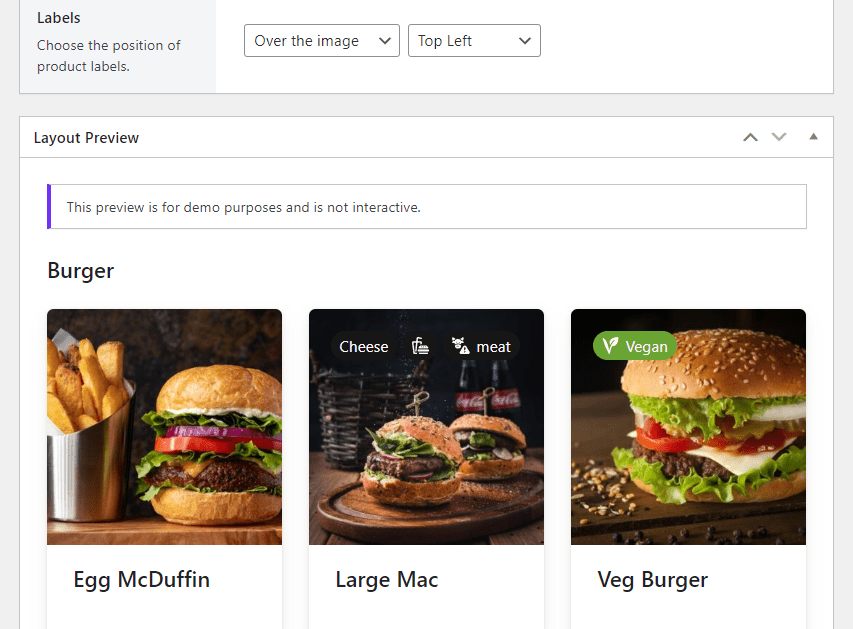
As you’ve successfully created your layout, you’ll need to add it to a page on your WordPress site.
- In your WordPress dashboard menu, hover over Pages and click Add New.
- This new page will be your restaurant’s online menu. Customers will use it to place online orders. You can give it a name (usually ‘menu’) and then click the black plus (+) sign to add a block.
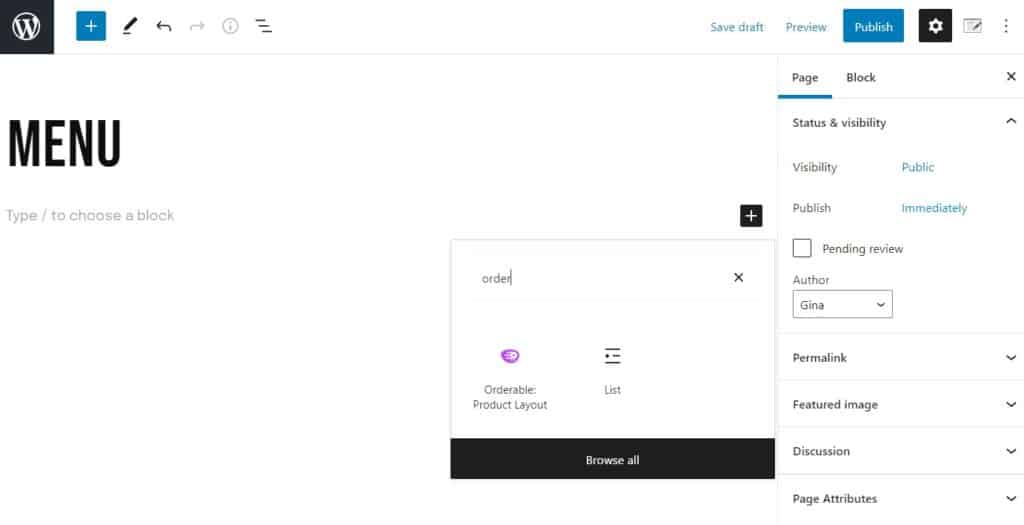
- Search Orderable in the search area and click the Orderable: Product Layout block.
- This will add a generic grid to your page. Make sure you select your layout from the right-hand layout dropdown and then click Publish.
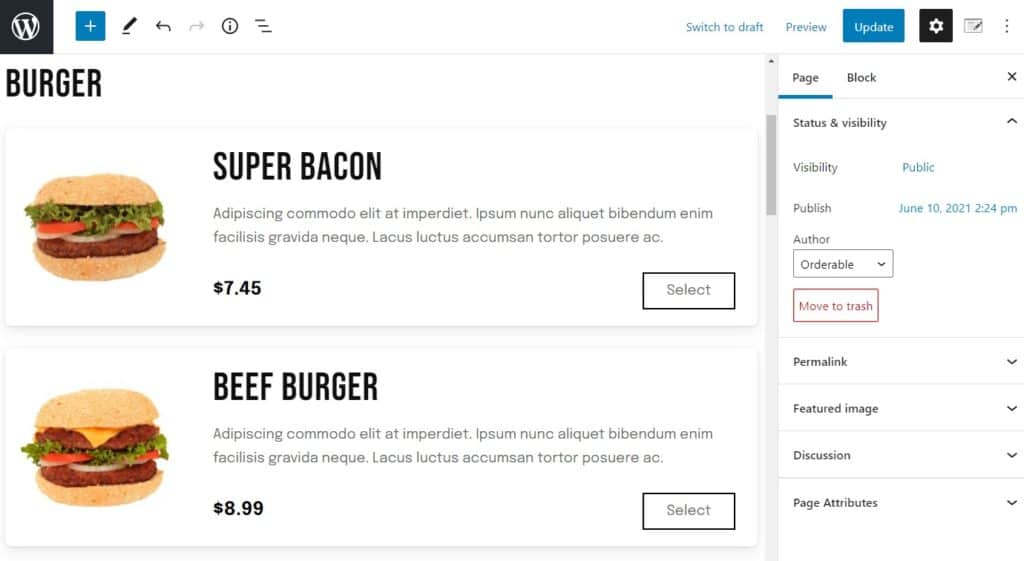
Now we have your restaurant’s curbside pickup menu. We can create your pickup schedule.
Step 4: Enable curbside pickup
Summary: Turn on pickup as a service option and set your hours.
The first thing you’ll need to do when offering collection or pickup is to change a setting in Orderable to allow this to happen.
To do this, take the following steps:
- Go to Orderable > Settings from your WordPress dashboard and click the Store Settings tab/link.
- Scroll down the page until you get to a section called Services. Next, check which services you’ll offer (Pickup).
- Once you’re happy with your changes, click the blue Save Changes button.
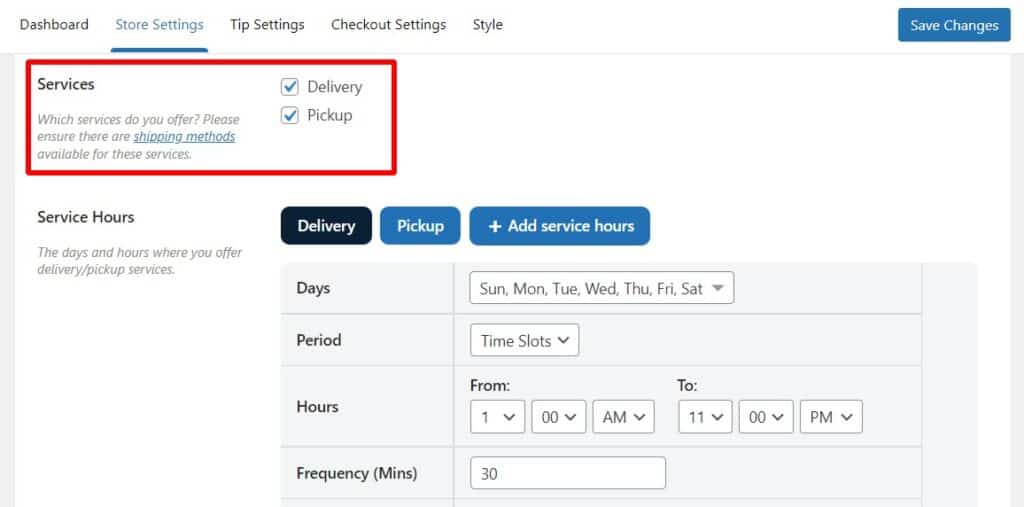
Now we have pickup activated on our store. We can start adjusting a few things, starting with our service hours or time slots.
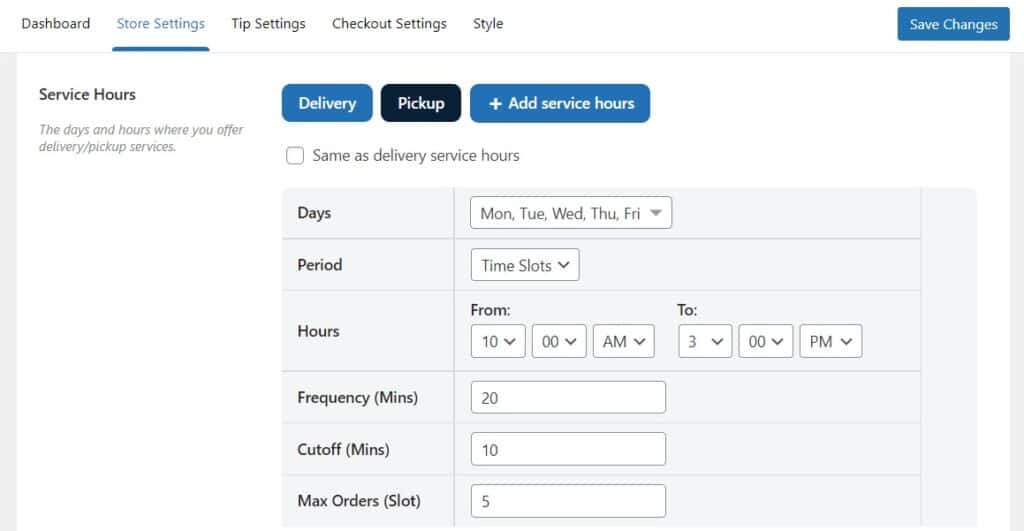
- While still on the Store Settings tab, you’ll see a Service Hours section.
- You can create as many time and date slots as you like in this section. Click the blue Pickup button next to Service Hours to offer specific pickup slots.
- Here you’ll be able to uncheck Same as delivery service hours and create as many pickup-specific slots as you like.
- Once you’re happy with your changes, click the blue Save Changes button.
Step 5: Create curbside pickup notifications
Summary: Tell customers exactly where to collect their orders.
Now you’ve created your curbside pickup schedule and menu. You’ll want to customize the notifications you send to customers, informing them where your pickup location is.
To do this in Orderable, take the following steps:
- Go to Orderable > Order Statuses from your WordPress dashboard and click the Add New button.
- Give your new order status a name.
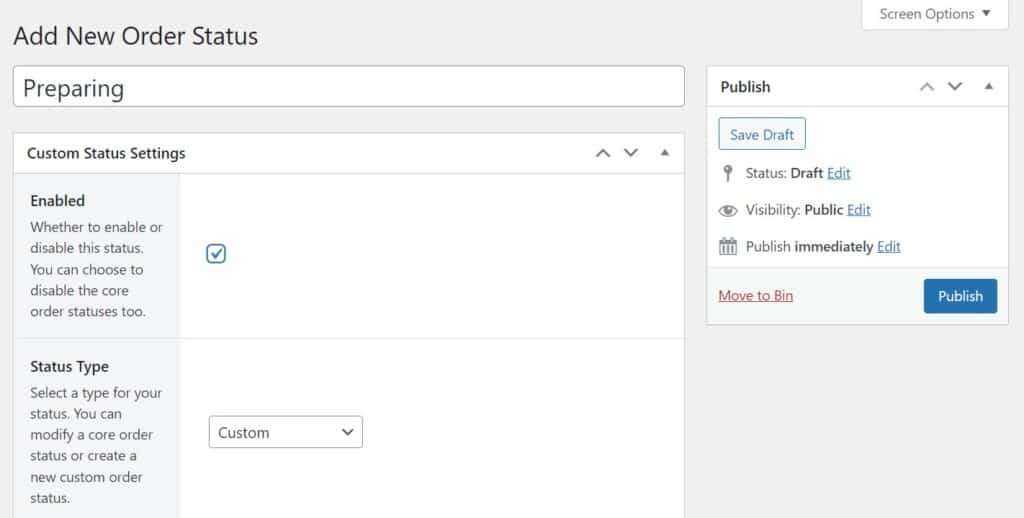
- Next, click the checkbox next to Enabled to have this order status appear on the Orders and Live Order View Page.
- Underneath this, you’ll be able to select the Status Type.
- Next steps allow you to decide which order statuses will be displayed in the Actions column of the Live Order View page. This will make processing orders easier. You can select as many as you like.
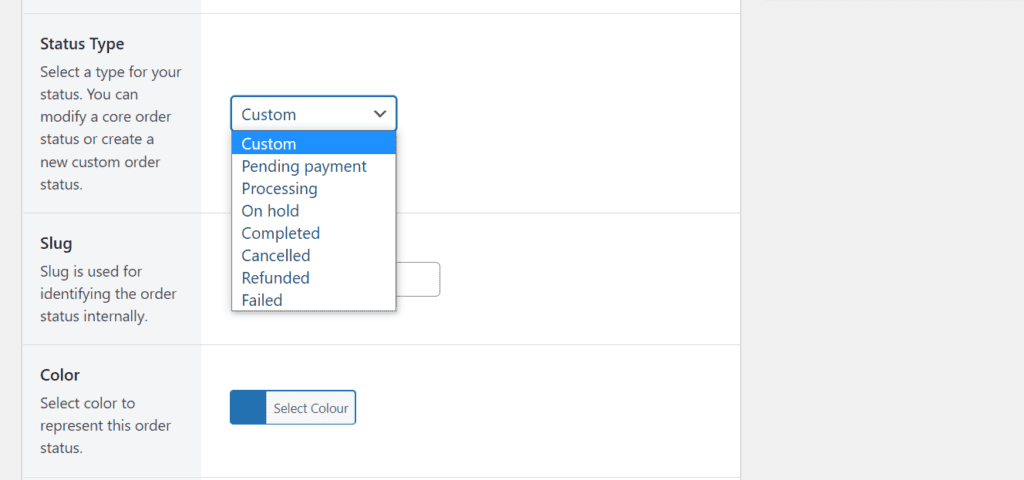
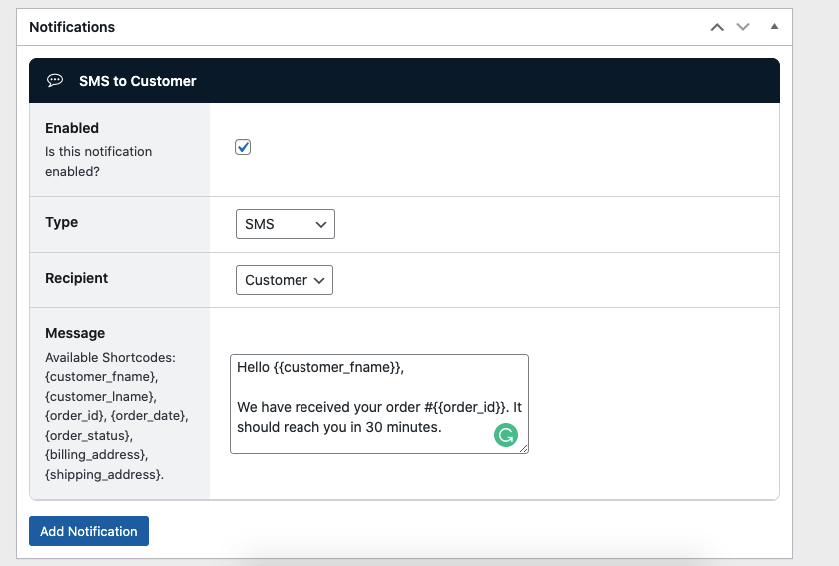
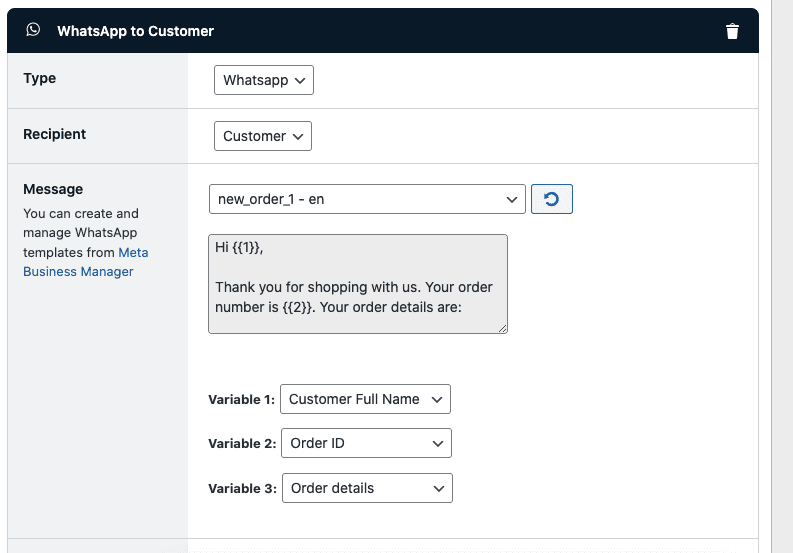
Now we have our order notification set up. We’ll want to add the actual message that is sent to customers. You can find this by scrolling down the page and clicking the Notifications section.
With Orderable, you can add text, WhatsApp, or email notifications. Check our notification docs to see how to set up each of these.
Step 6: Manage your curbside pickup orders
Summary: Track and fulfill orders in one place.
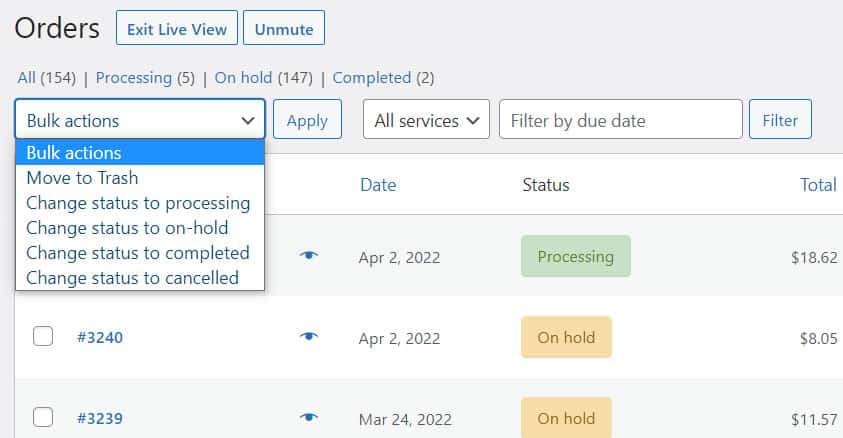
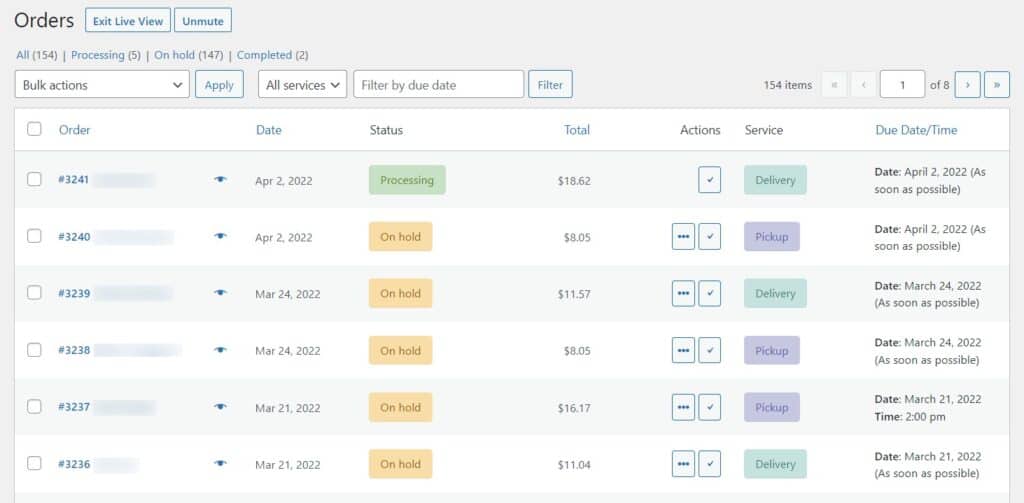
Lastly, with Orderable, you can manage your curbside pickup orders through its built-in orders page. This way, you can see what orders are in the works and when a customer is coming to collect them.
To find the Orders page from your WordPress dashboard, go to WooCommerce > Orders.
Restaurant curbside pickup FAQ
Curbside pickup requires customers to collect their order from the restaurant, while delivery involves transporting it to the customer’s address.
Not necessarily. You just need a clear pickup point, a way to receive orders (online or by phone), and staff to bring food to customers.
Yes. Many upscale restaurants offer it to reach more customers without changing their in-house dining experience.
No third-party delivery fees apply if you manage it yourself. With a plugin like Orderable, you can keep 100% of the sale.
Add curbside pickup to your restaurant website today
Offering curbside pickup is an excellent way for restaurants to expand their customer base and increase revenue. By providing a contactless and convenient option for customers, restaurants can increase their sales and enhance their overall customer experience.
Orderable is a powerful WordPress plugin that allows restaurant owners to set up and manage curbside pickup orders quickly. With features such as online ordering, menu management, and payment processing, Orderable can help restaurants to streamline their curbside pickup services and make the process as smooth as possible for their customers.
Get Your Restaurant Business Online With Orderable
Orderable is a user-friendly WordPress plugin that adds online ordering to your restaurant website.
Add your dishes, create your online ordering menu, customize your delivery schedule, and manage orders with ease.
Gina Lucia is our in-house Content Manager at Orderable. She writes articles, user guides, technical documentation, and creates videos on everything WooCommerce and Orderable.
Gina has been working in the WordPress/WooCommerce space since 2012 when she developed WordPress websites for clients large and small.
For the past 8 years, she’s been writing about everything WordPress and WooCommerce, becoming an expert in what makes a WooCommerce store succeed.
When not writing, Gina loves to tend to her vegetable garden, read, or travel to mainland Europe.
Don’t miss out on the latest Orderable news!
Sign up for our newsletter to receive the latest news from the blog, you’ll get pinged every week with a digest of the latest updates.
[fluentform id=”6″]

Related Articles
How to Add a Tip at the Checkout in WooCommerce

How to Create, Track, and Achieve Restaurant Goals (+ Examples)

Should You Offer Black Friday Restaurant Deals This Year?
Get Your Restaurant Online With Orderable
The WooCommerce plugin designed to help restaurants take orders online – with no added fees!
View Pricing