
How to Add a Takeaway Ordering System to Your Website

How to Add a Takeaway Ordering System to Your Website

Gina Lucia

Looking to add a takeaway ordering system to your restaurant website? This guide is here to help.
If you run a fast food restaurant, coffee and pastries shop, or cloud kitchen, you understand how important takeaway orders are to your sales and revenue.
👋 In this guide, we’ll walk you through how to add a takeaway ordering system to your restaurant website and keep everything in-house.
Here’s what we’ll be covering:
- What a takeaway ordering system is.
- What to look for in a good takeaway ordering system.
- The best takeaway ordering system for your food business.
- How to set up your ordering system for takeaway.
First, let’s begin by looking at what a takeaway ordering system is so we’re on the same page from the get-go.
Get Your Takout Business Online With Orderable
Create your takeout website quickly and easily with the takeaway ordering system for WordPress, Orderable.
Orderable is reliable, easy to set up, and simple to use. All you have to do is customize it to suit your takeout business and watch orders come in.

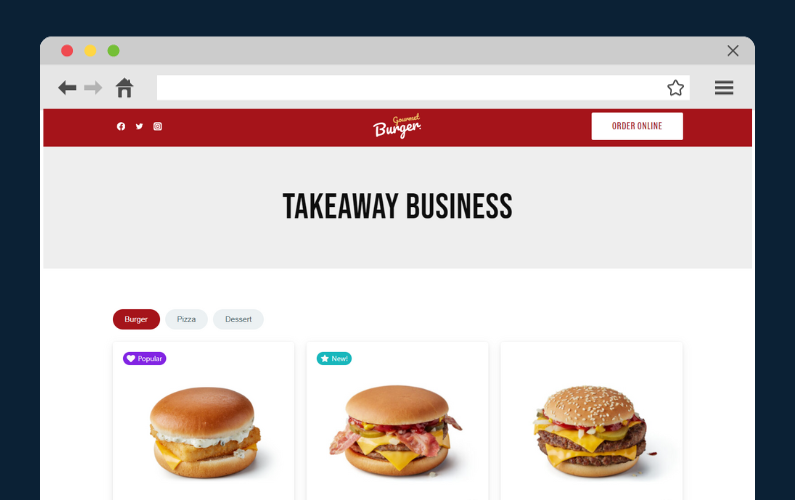
What is a takeaway ordering system?
A takeaway or online ordering system is a software solution that allows customers to order food and drinks on your restaurant website or mobile app.
It records their selections, allows them to pay, and forwards these orders to your kitchen staff to be fulfilled. When this is done, customers can pick their orders up from your premises or have them delivered.
Think of an online ordering system as a digital waiter. The online ordering system presents customers with your menu, but instead of a waiter writing down their order, it enables customers to input their selections directly. Then it allows customers to pay for their meal, like how a server would collect your payment after you’re done with your meal.
Why you need your own takeaway ordering system
📈 The food ordering business is currently booming and 70% of customers prefer ordering for takeout and delivery.
This is why third-party food ordering apps like Uber Eats, DoorDash, and Grubhub are gaining traction.
If you’ve been looking at these third-party food delivery apps as a solution, you’ve probably seen that they’re quite pricey. You have to be willing to part with about 30% of your revenue to cover setup and transaction costs.
These spell lower profit margins and losses for your business. You have to sell a lot of takeout just to make it even. So, if you run a smaller establishment like a bakery or homemade pizza shop, you need a better option. In this guide, we’ll present you with that option, which is Orderable on your WordPress site.
But before we get to that, let’s first cover what you should look for in a good ordering system to see if Orderable fits the bill.
What to look for in a good takeaway ordering system
Choosing a takeaway ordering system for your restaurant business is a key step because the right one will make your work easy. We’ve already seen how your food ordering system should allow customers to place orders and enable you to manage and fulfill them at the basic level.
Apart from that, here are some things you should consider when selecting a takeaway ordering system.
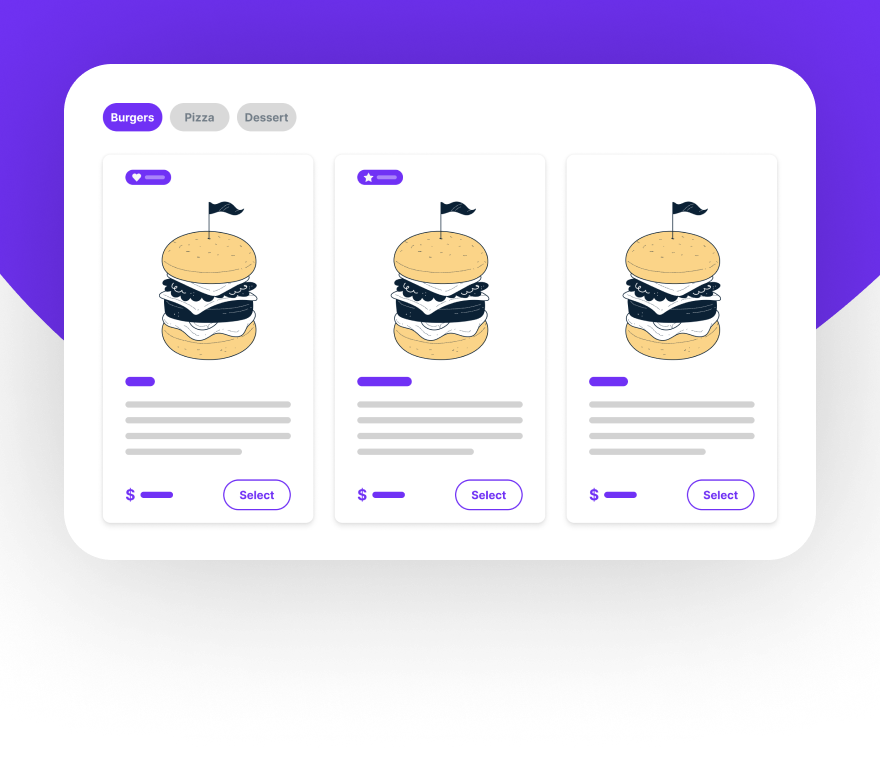
A user-friendly interface for you and your customers
Your customer’s online ordering process is smooth and hassle-free. Because of this, you should prioritize an online ordering system with a user-friendly interface. It should allow them to browse your online menus, select menu items, make payments, and check out easily.
At the same time, it should have a user-friendly dashboard for you, the restaurant owner. With a user-friendly interface, the system will streamline your operations by allowing you to set it up and manage your orders easily.
Mobile-friendliness
📈 Given that 67% of customers are more likely to buy a product from a mobile-friendly site, you should choose a takeaway ordering system optimized for mobile devices.
In addition, mobile ordering via smartphones is on the rise. These two reasons make a compelling case for you to prioritize a mobile-optimized online ordering system.
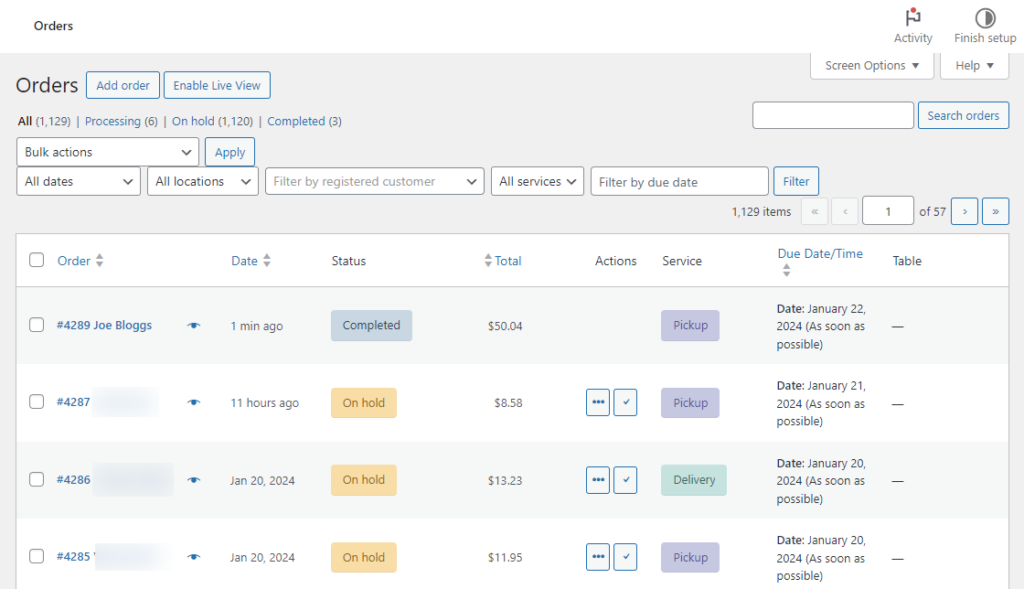
A live order management screen
Once you have an online ordering system in place, most of the work you’ll be doing is managing customer orders. As a result, you’ll want an online ordering system that consolidates your orders in one place to make your work easier.
In this case, you should prioritize a solution with a live order management screen. From this, you’ll be able to see orders coming in in real time and set custom order statuses depending on whether an order is pending, being processed, or ready for takeout. A live order screen makes order management a breeze.
On this screen, you should also have the option to print order tickets and receipts for either your kitchen staff, delivery drivers, or to attach to your take away orders for your customers.
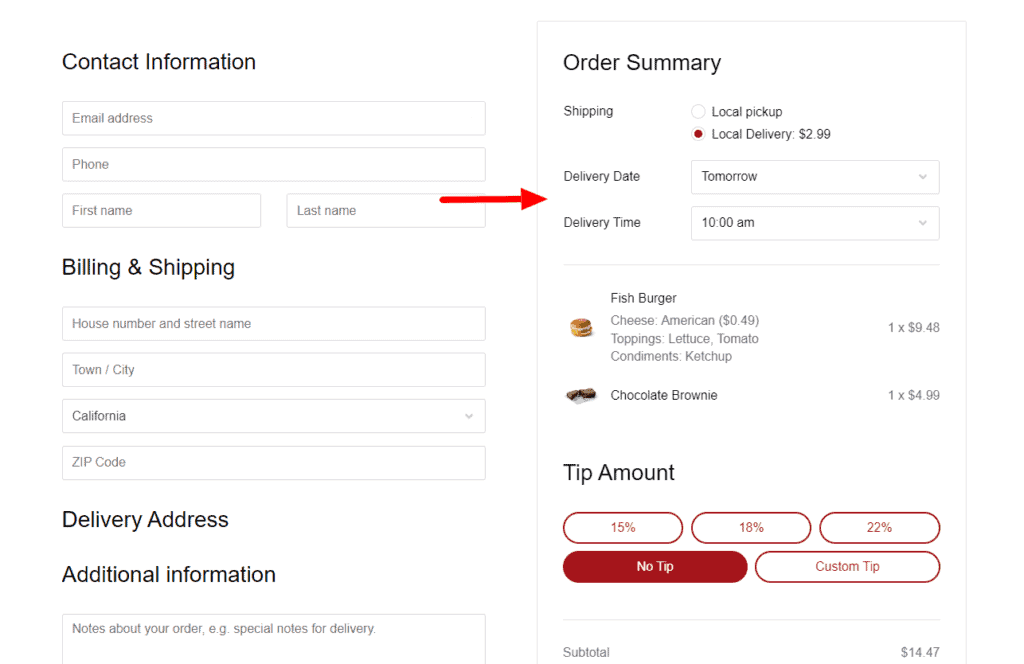
The ability for customers to select their own delivery/local pickup dates and times
If you’ve been in the restaurant business for a while, you understand the value of customer satisfaction.
📈 According to research, an increase in customer satisfaction by 1% increases customer retention by 5%.
One of the ways you can improve customer satisfaction is by allowing them to select when it is convenient for them to receive deliveries or pick up their orders. An online ordering solution with delivery and curbside pick-up time slots can help you with this.
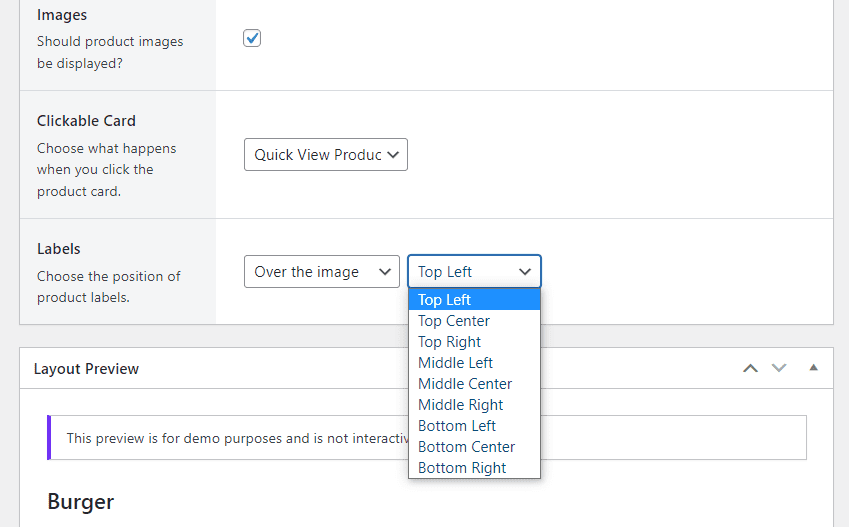
Customizability
A takeaway ordering system is an extension of your online presence. As such, it should come with features that allow you to customize it to fit your restaurant website and brand. This includes the ability to customize fonts and colors, add images, and create layouts.
It should also go beyond simple aesthetics and allow you to set up your delivery services and zones, operation hours, and all other aspects of your restaurant’s operation.
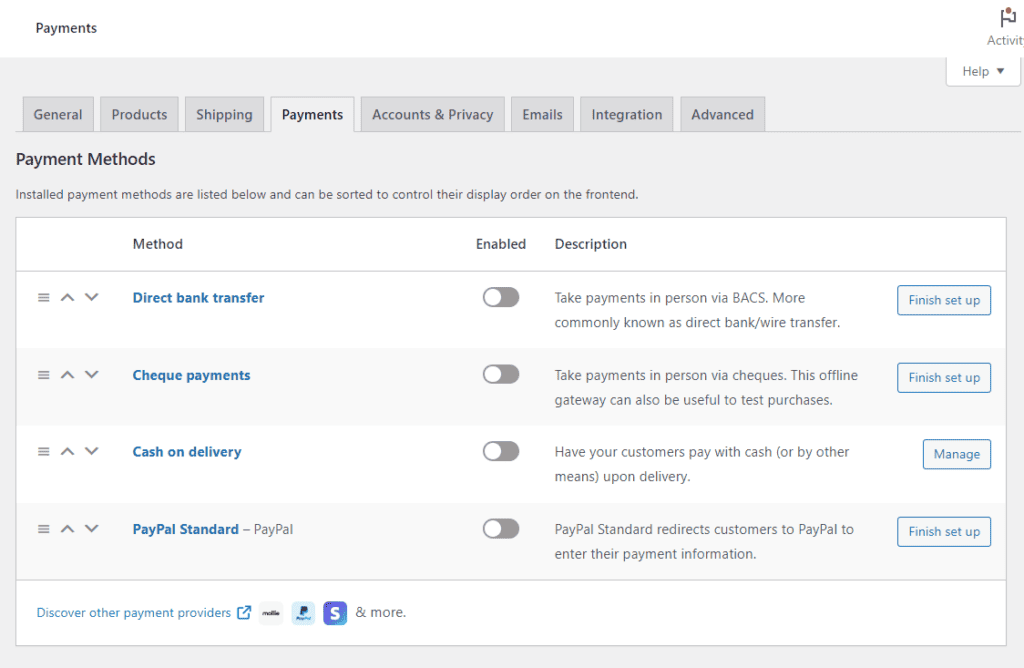
The ability to add multiple payment options
Adding multiple payment options to your checkout has several benefits, including:
- It accommodates your customers’ payment preferences. Customers have different payment habits. Offering options like credit cards, debit cards, and digital wallets (Apple Pay, PayPal, Stripe, etc.) cater to a wide audience and make checking out smooth for everyone.
- It reduces cart abandonment. A recent Baymard Institute study revealed that 13% of customers abandon their carts when the payment options aren’t enough.
For these reasons, an online ordering software that allows you to add multiple payment gateways should be a priority.
Get Your Takout Business Online With Orderable
Create your takeout website quickly and easily with the takeaway ordering system for WordPress, Orderable.
Orderable is reliable, easy to set up, and simple to use. All you have to do is customize it to suit your takeout business and watch orders come in.
No additional fees
As a small business with a limited budget, you wouldn’t want extra costs that eat into your profits. To avoid these costs, get a solution that charges no additional fees per transaction. This way, you’ll keep your hard-earned cash to yourself.
Bonus: Sales-boosting features
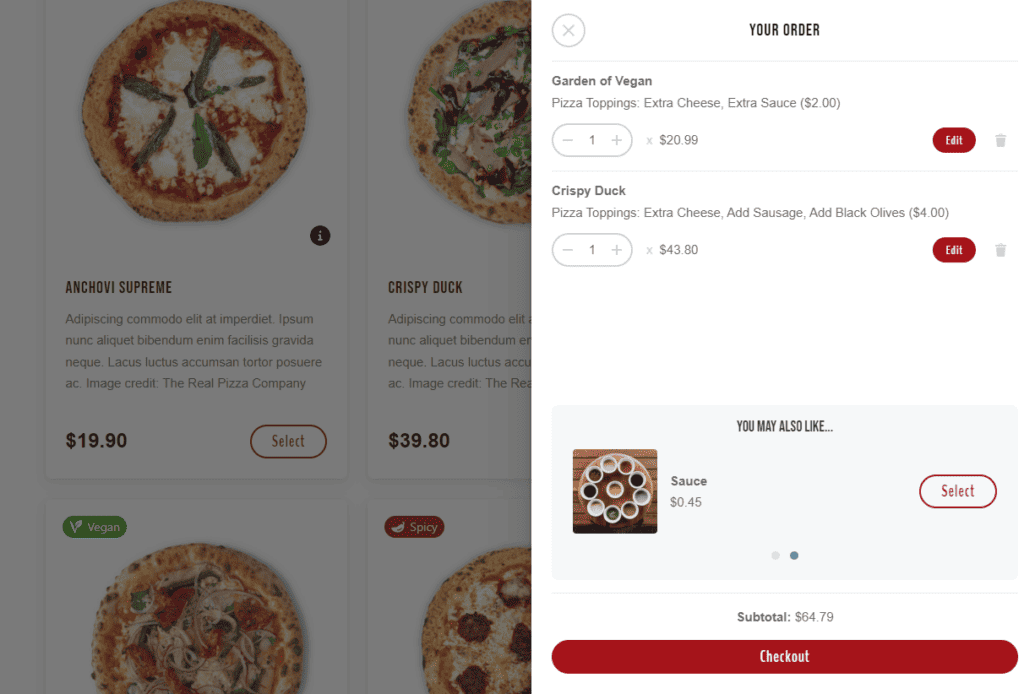
Your ordering system can also contribute to boosting your sales and revenue. Features such as add-ons, checkout tipping, and order bumps enable customers to spend more per order. If an online ordering system has these features, it should be at the top of your list.
Now you know what you need to look for in your takeaway ordering system. Orderable checks all of these boxes and offers you so much more, making it an excellent choice for your restaurant business. In the next sections, we’ll explore how it checks these boxes and see how we can set it up and start taking orders online.
The best takeaway ordering system for your food business
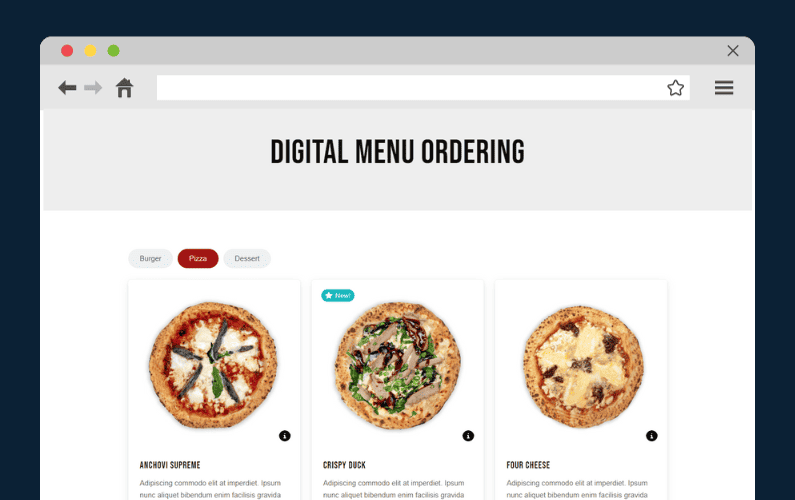
Orderable is the best solution for your restaurant, cafe, or bakery to start taking orders online. It is an all-in-one ordering platform for restaurant websites built on WordPress. It takes care of pretty much everything that has to do with online ordering.
Most of the work has already been done for you and all you’ll have to do is add your products, process orders, and deliver them. Also, it has a Free and Pro version depending on what you need.
So, what makes Orderable a smart choice for online ordering? Let’s find out in the next section.
Why use Orderable for your restaurant online ordering system?
There’s a lot to love about Orderable as an online ordering system. But what makes it great for your restaurant establishment? It has so many benefits for you and your customers. Here are some of them.
You’ll have full control over the ordering process
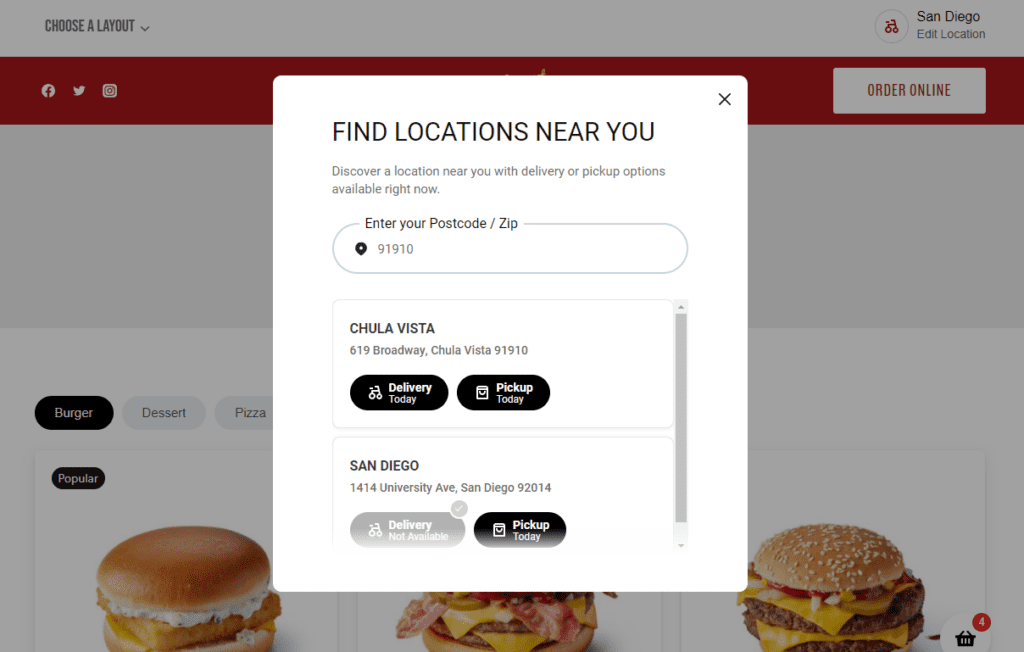
Orderable allows you to use your own WordPress website for online ordering. This allows you to have complete control and keep the ordering experience in-house.
You’ll be free to add any payment gateways you want, set up your delivery zones, set your delivery pricing, etc. It’s all in your hands.
You’ll create a takeout schedule that works for you and your customers
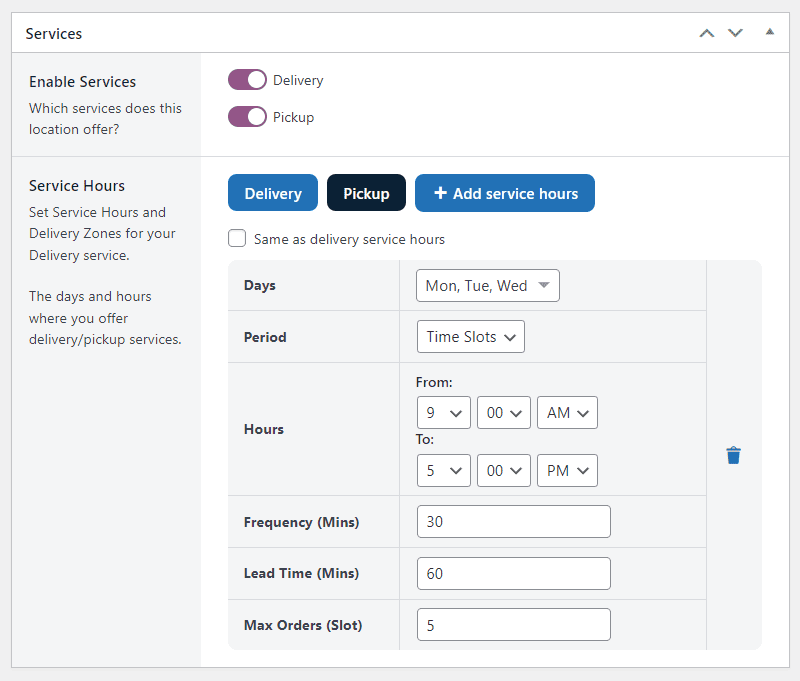
One way Orderable makes restaurant management easy is through its delivery/pickup time slots. You can use this feature to set exactly when you’ll be available to fulfill takeout orders. This enables customers to select when it is convenient for them to pick up their orders or have them delivered.
You’ll also avoid overworking your staff by setting maximum orders per time slot and holidays when you won’t offer delivery or takeout services.
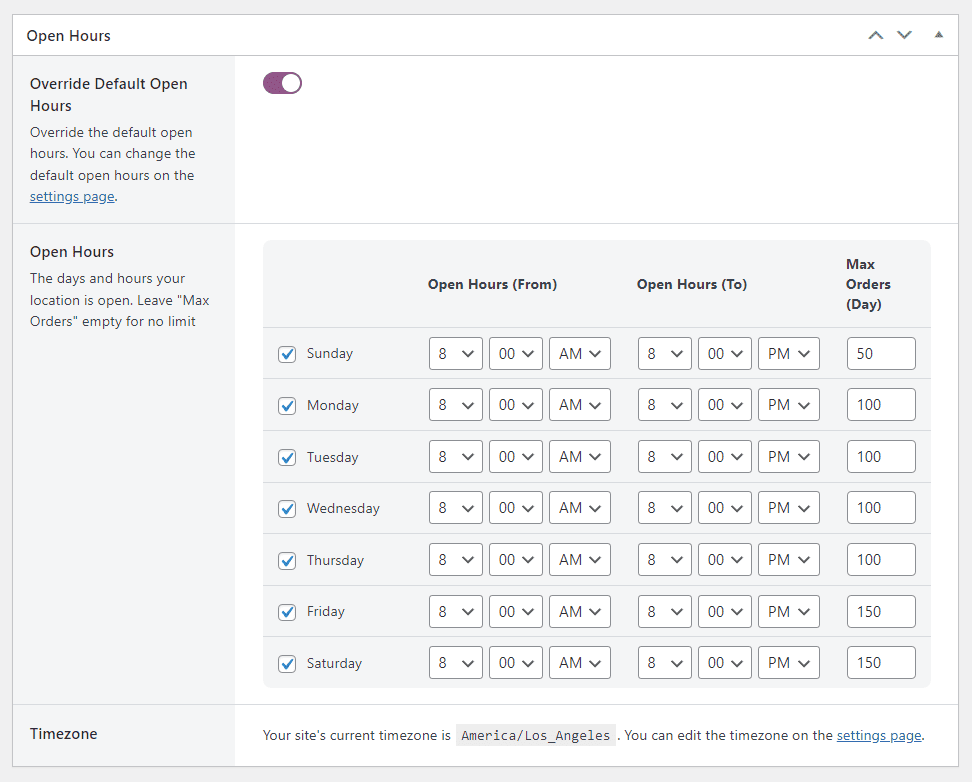
You can also offer custom delivery services, such as ASAP, same-day deliveries, scheduled delivery for pre-orders, and so on. You can charge extra for these services and improve your revenue.
This is one of the major perks of the control Orderable gives you over the ordering process.
You’ll pay no additional fees
We’ve seen how third-party food-ordering apps charge commissions per transaction, which eats into your revenue.
With Orderable you don’t have to share your profits since it is commission-free! After the initial setup, you don’t have to pay monthly fees to keep enjoying this service. The result? Higher profit margins.
Sales boosting features designed to get you more revenue
Speaking of higher profit margins, you can have more money in your pocket with Orderable’s revenue-boosting features.
These include:
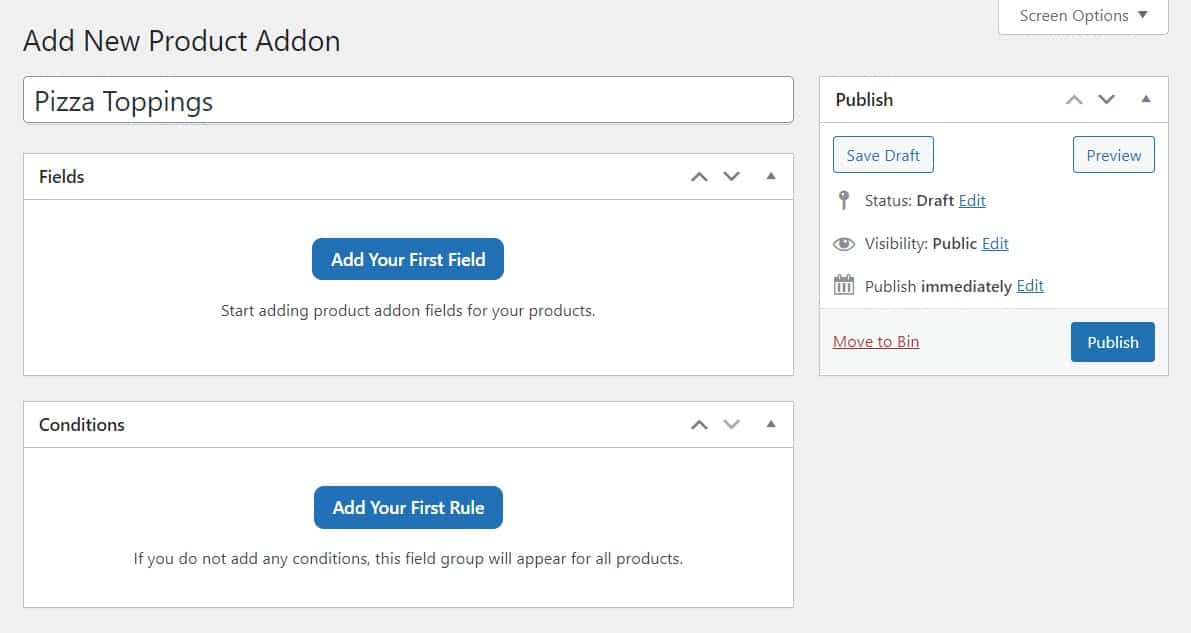
- Order bumps. Suggest additional items that go well with the food customers want to order. For example, if a customer has ordered fries, you can suggest a burger, soda, or smoothie to go with it.
- Checkout tipping. Add a tip prompt at checkout to ask customers satisfied with your service to leave a tip.
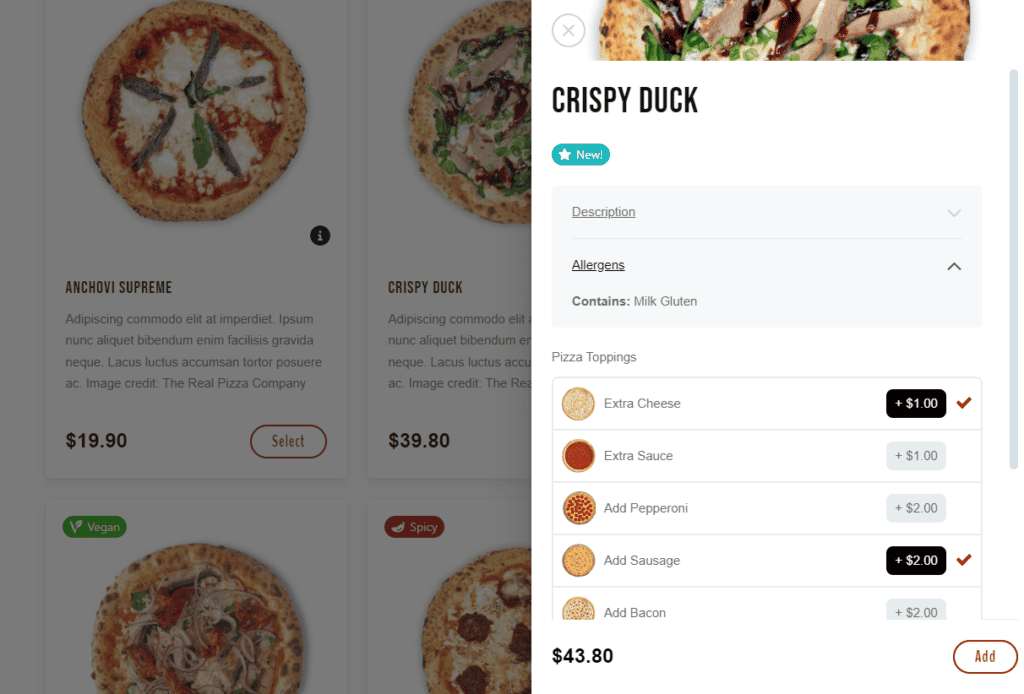
- Product Add-ons. Customers can customize their orders with extra items, such as extra pepperoni on their pizza. You can charge extra for these items and improve your average order value.
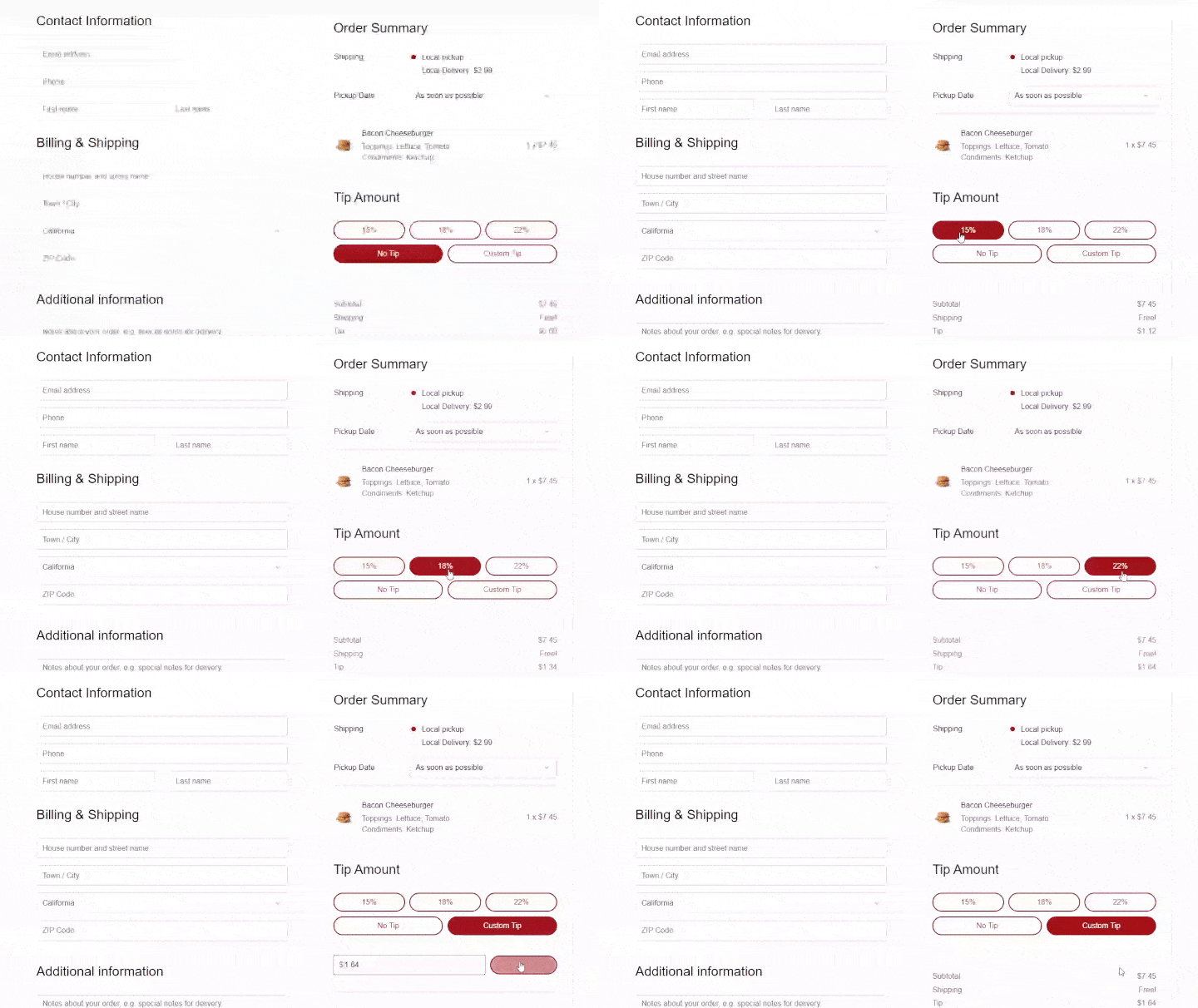
With Orderable’s sales-boosting features, you can earn more revenue without investing too much effort into it.
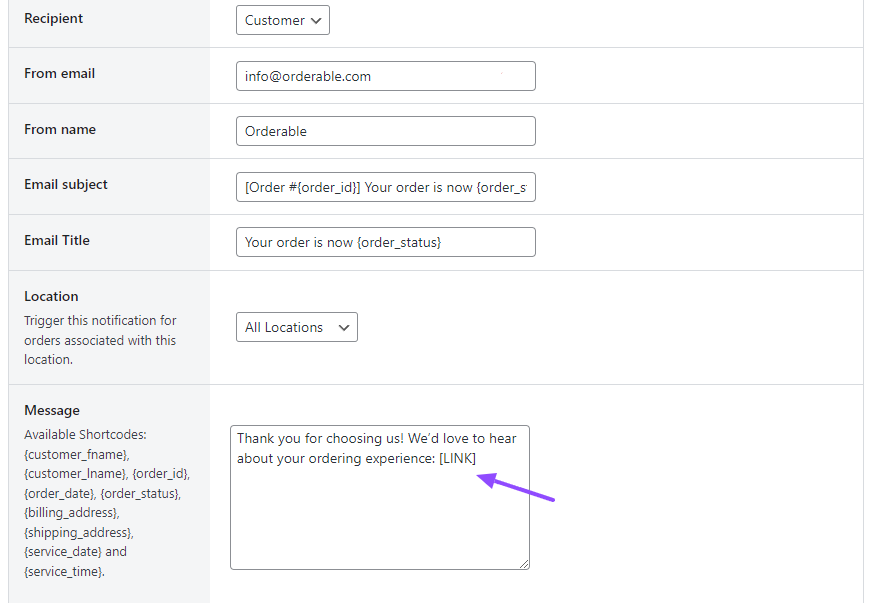
Keep customers updated to improve customer experience
Customers like to be kept in the loop on the status of their orders. Doing so improves their experience with your business.
You can do this by sending them notifications on the status of their orders at each stage, including when the order is:
- Confirmed.
- Being processed.
- Being packaged.
- Out for delivery or pickup.
Orderable enables you to do this via the platforms customers use daily, such as WhatsApp and SMS. In other words, it allows customers to receive order notifications conveniently.
Receipt/ticket printing and customization
With Orderable, you’ll be able to create custom receipt/ticket layouts for particular needs. For example, you might want a ticket you hand to the kitchen, a different one you hand to the delivery driver, and a receipt you print and attach to the customer’s order.
Orderable allows you to create and customize all of these and print them all from the edit order screen to your local printer.

A mobile-friendly design for a smooth ordering experience
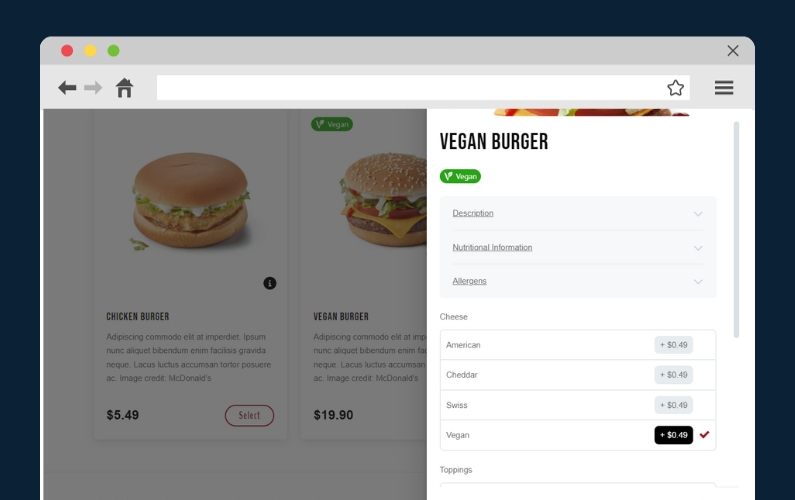
Orderable has a mobile-friendly design, meaning it looks like a native Android or iOS app on mobile devices. Everything, from its menu templates to its live order screen, is optimized for mobile ordering.
This makes your ordering experience seamless, encouraging more customers to complete it.
Orderable works with WordPress
WordPress is the best content management system. Being a WordPress plugin, Orderable allows you to enjoy all the benefits of WordPress, including security and customizability. On top of that, Orderable installs WooCommerce for you if you haven’t done so already.
This is simply a condensed summary of what you’ll get with Orderable. Having said that, let’s see how to set it up on your WordPress website and start taking orders.
How to set up your takeaway ordering system
In this section, we’ll walk you through setting up and using Orderable. It goes without saying, but you should already have a WordPress website.
So, with your WordPress website in place, here’s how you can set up and use Orderable.
Step 1: Install Orderable
The first thing you’ll need to do is install the Orderable plugin on your WordPress website. As mentioned earlier, it has both a free and a Pro version.
For this guide, we’ll install Orderable Pro because it has the features we’ll need for your takeaway business like time slots, product add-ons, tips at checkout, etc.
To install Orderable, you’ll first need to purchase it from the Orderable website: Orderable.com
Get Your Takout Business Online With Orderable
Create your takeout website quickly and easily with the takeaway ordering system for WordPress, Orderable.
Orderable is reliable, easy to set up, and simple to use. All you have to do is customize it to suit your takeout business and watch orders come in.
After completing your purchase, you’ll receive an email from Orderable containing a .zip file with 2 plugins: Orderable Free and Pro. Click to download both of them.
We’ll install Orderable Free first since Orderable Pro needs the Free plugin to work. To do this:
- Log into your WordPress dashboard and go to Plugins > Add New.
- Click the Upload Plugin button at the top of the page.
- Next, select the .zip file with Orderable Free you previously downloaded and click Install Now. Click Activate Plugin to finish.
- Repeat the previous step to install Orderable Pro as well.
With Orderable installed, you can set it up by providing your restaurant information.
Step 2: Provide your business’s information
To start setting Orderable up, click on Orderable on the left sidebar of your WordPress dashboard. This will lead you to the setup page.
Click the Begin button. If you haven’t installed WooCommerce yet, clicking this button will do it for you.
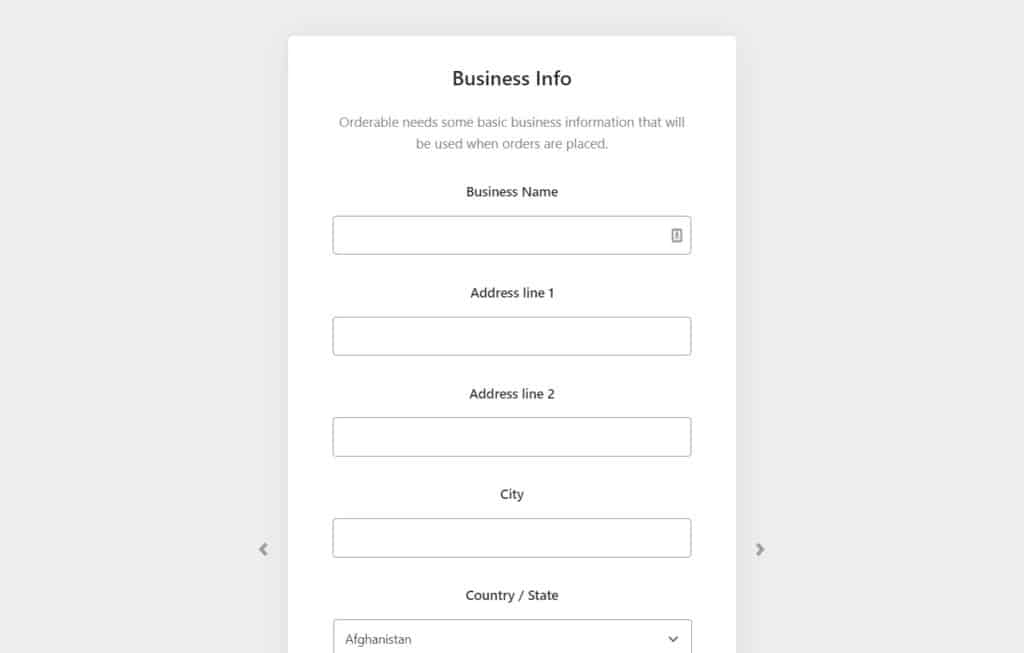
Next, you’ll need to provide the following information over the next few screens:
- You’ll enter your restaurant’s basic information, including the name, physical address, email address, etc.
- You’ll also provide service information, such as whether you offer delivery or local pickup, days when your business is open, and opening hours.
Step 3: Add your menu items
In this step, you’ll add the food you sell to your customers. We’ll do the first part with WooCommerce and the next with Orderable.
To add your menu items, take the following steps:
- From your WordPress dashboard, go to Products > Add New.
- This will take you to the WooCommerce edit product page. Here, you’ll need to do the following:
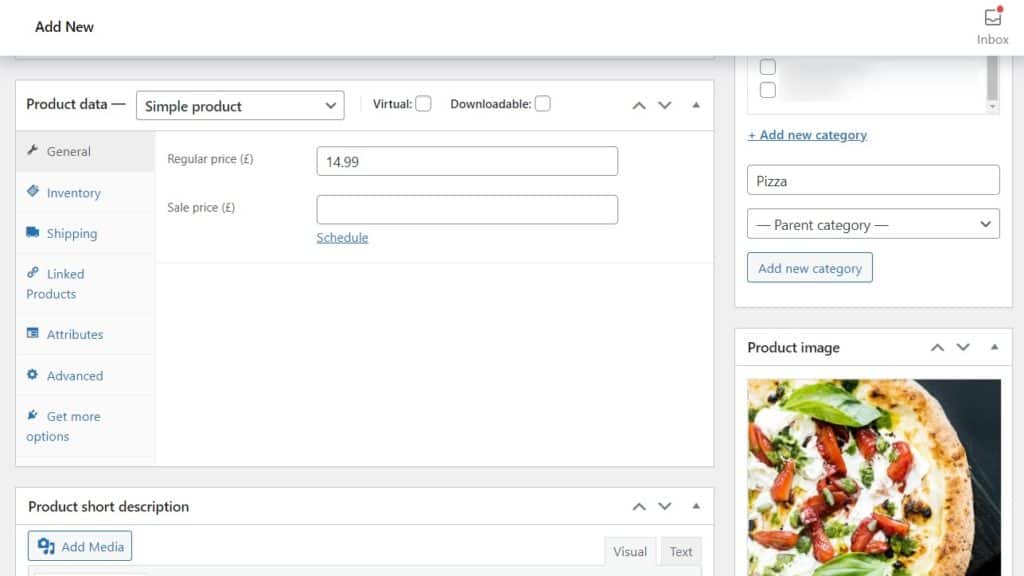
- Name the food, for example, a classic burger.
- Click on the Set product image on the bottom right and add the image of the burger.
- Scroll to the Product data section and add your product’s price.
- Create or assign categories and tags to which the product belongs (for instance, meat, seafood, or sandwiches).
Click Publish once you’re done. We’ll use Orderable for the next part.
Include product add-ons
To improve customer satisfaction and increase your revenue, you can include add-ons like special sauces, toppings, etc.
Orderable allows you to do this by following these steps:
- From your WordPress dashboard, go to Orderable > Product Addons > Add New.
- Name your add-ons, such as Classic Burger Add-ons.
- Click the Add Your First Field button and customize your add-on this way:
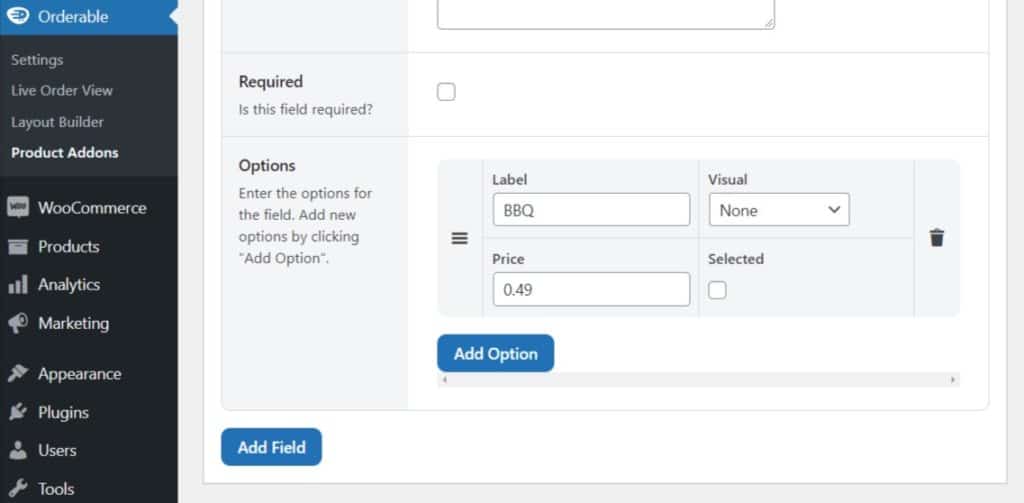
- Start by naming it, for example, ranch dressing, BBQ sauce, etc., and provide a description for it.
- Choose whether it will be displayed as a checkbox, radio button, etc.
- Scroll down to the Options section and click the Add Option button. Provide a name, price, and image (or any other visual representation) of the add-on. Repeat this step for additional options.
- Under the Rules section, you’ll set the conditions under which the add-on will be displayed.
- Once done, click on Publish.
Step 4: Create your online takeaway menu
Now, it’s time to create the menu from which your customers will order. We’ll create a layout first and then display it on a page.
To create a menu layout:
- Go to Orderable > Layout Builder > Add New from your WordPress dashboard.
- You will be directed to the edit product layout page, where you can:
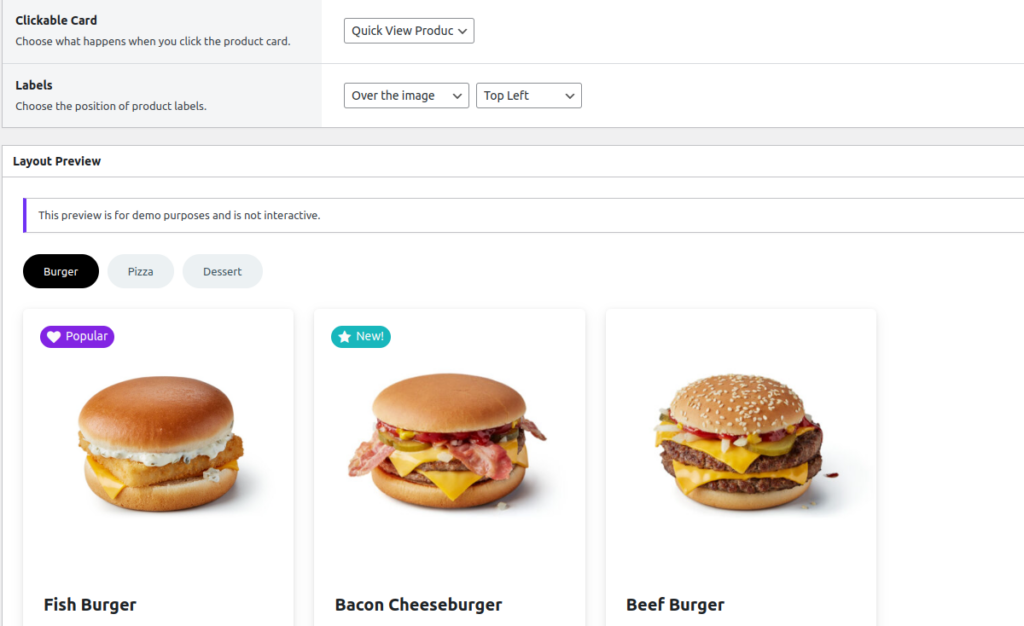
- Select the product categories to be displayed in the layout.
- Choose a display type between Grid or List.
- Choose whether to separate categories by titles and tabs, etc.
- Click Publish when you’re satisfied with your settings.
At this point you’ve only created the layout, to display your menu, you’ll have to add it to a page.
To do this:
- Go to Pages > Add New on your WordPress dashboard. Name this page ‘Menu’ since it is where we’ll display our menu.
- Click the plus(+) button to add a new block. Search for ‘Orderable’ and click the Orderable: Product Layout block when it appears. A generic product grid/list will be displayed on this page.
- Next, select the specific layout you created from the Layout dropdown on the right sidebar.
- When this is done, click Publish to finish.
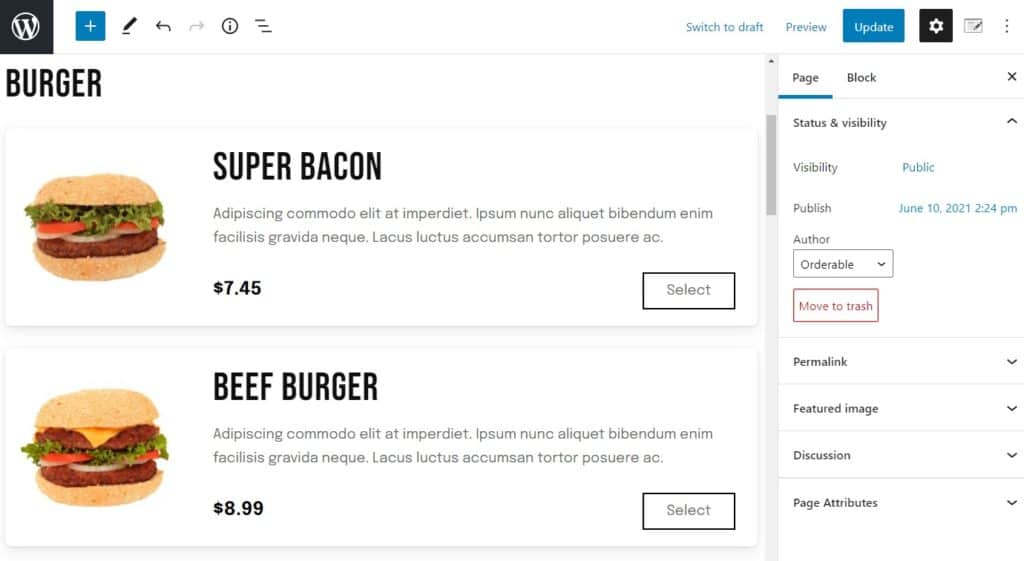
Now that everything else is set up, we can shift our focus to adding takeaway options.
Step 5: Add local pickup/takeaway options
In this section, we’ll set up a local pickup/takeaway schedule using timeslots.
Note: Before configuring your takeaway schedule, you must set up your shipping zones and methods in WooCommerce. You can find them by going to WooCommerce > Settings > Shipping > Delivery Zones.
To set up your takeaway schedule:
- Go to Orderable > Locations in your WordPress dashboard.
- Select the location (shipping zone) you want to add pickup/takeaway options to.
- In the Services section, click the Delivery and or Pickup options, depending on what you want to offer.
- Next, set the days of the week in which you’ll offer these services.
- Customize it further by adding Time Slots, setting the frequency (for instance, after 30 minutes), and the maximum orders per time slot.
- Click Save Changes at the bottom to finish up.
Now that this is done, customers can place their orders for takeaway or local pickup. In the next section, we will see how Orderable allows you to manage these orders.
Manage your restaurant’s takeaway orders
Orderable makes it super easy for you to manage your orders with its Live Order Screen. You can access your orders from anywhere with a computer or tablet and an internet connection.
To view your orders, go to Orderable > Live Order View. You’ll see the details of each order, including the customer’s name, order status, and whether they selected local pickup or delivery. You can expand this section to see the specific items customers have ordered.
How order statuses work with Orderable and WooCommerce:
- All orders coming in are automatically marked on hold.
- When you click to change an order’s status to ‘Processing,’ Orderable will email the customer to inform them. The same thing happens when the order is completed (if you set up automate order notifications).
You can also set up SMS or WhatsApp notifications to ensure customers don’t miss out on updates.
Use Orderable as your online food ordering system today
Adding a takeaway ordering system to your website unlocks a new revenue stream for your business and gives you complete control over it. However, you can’t do this with the default WordPress setup.
Orderable, an online food ordering plugin for WordPress, allows you to easily add a robust online ordering system to your WordPress site. With Orderable, you can do everything, including creating menus, taking online payments, managing takeaway orders, and creating a smooth customer ordering experience.
On top of that, you’ll have revenue-boosting features at your disposal to help grow your business’s income.
Get Your Takout Business Online With Orderable
Create your takeout website quickly and easily with the takeaway ordering system for WordPress, Orderable.
Orderable is reliable, easy to set up, and simple to use. All you have to do is customize it to suit your takeout business and watch orders come in.
Gina Lucia is our in-house Content Manager at Orderable. She writes articles, user guides, technical documentation, and creates videos on everything WooCommerce and Orderable.
Gina has been working in the WordPress/WooCommerce space since 2012 when she developed WordPress websites for clients large and small.
For the past 8 years, she’s been writing about everything WordPress and WooCommerce, becoming an expert in what makes a WooCommerce store succeed.
When not writing, Gina loves to tend to her vegetable garden, read, or travel to mainland Europe.
Don’t miss out on the latest Orderable news!
Sign up for our newsletter to receive the latest news from the blog, you’ll get pinged every week with a digest of the latest updates.
[fluentform id=”6″]

Related Articles

7 Quick-Service Restaurant Best Practices for 2026

Why ‘Menu Fatigue’ is Real and How to Keep Your Menu Fresh
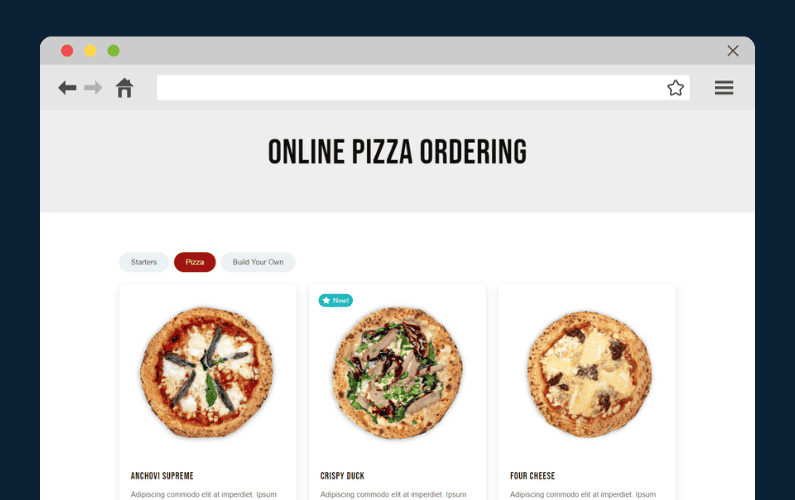
Why You Should Use a WordPress Food Ordering Plugin for Your Restaurant
Get Your Restaurant Online With Orderable
The WooCommerce plugin designed to help restaurants take orders online – with no added fees!
View Pricing